

Managing your EVENT Live devices helps you keep track of which devices are assigned to your events, available for reassignment, or ready to be returned to EVENT Live. This guide walks you through how to view devices assigned to your events, return devices to your organization, and return borrowed devices to EVENT Live.
Keeping Track of your Devices
The EVENT Live Team will set up your devices in the backend and assign them to your organization and event. Once assigned, you can view and manage these devices directly from your Org Dashboard.
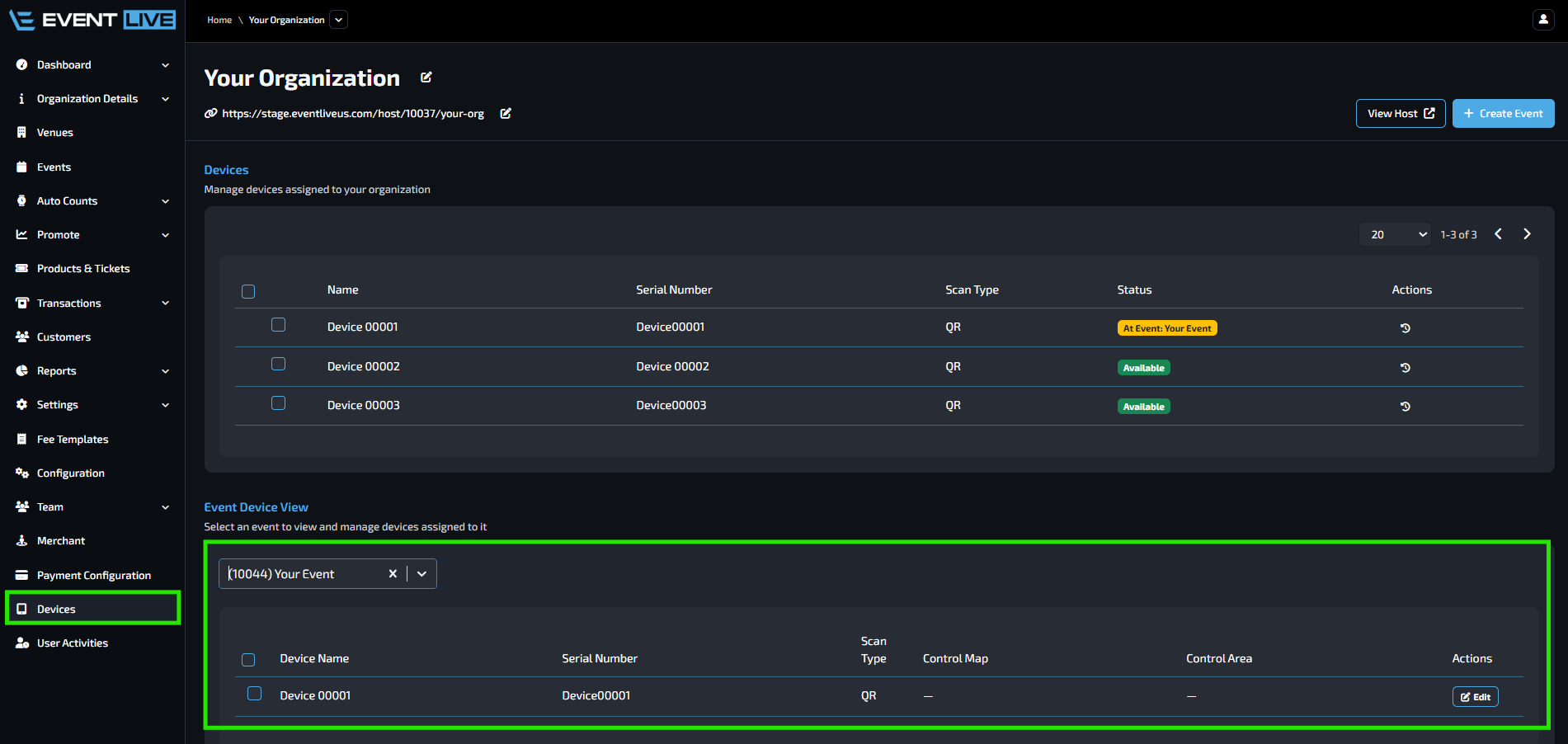
✅ Why This Matters: This helps you keep track of the devices borrowed from EVENT Live and see which devices are assigned to each event.
Returning the Devices
The correct device return flow is: Return to Organization → Return to EVENT Live
This allows your organization to keep using its assigned devices for other events or return borrowed devices to EVENT Live.
I. Return a Device to Your Organization
If your organization has specific devices that are used across multiple events, return the device to your organization first.
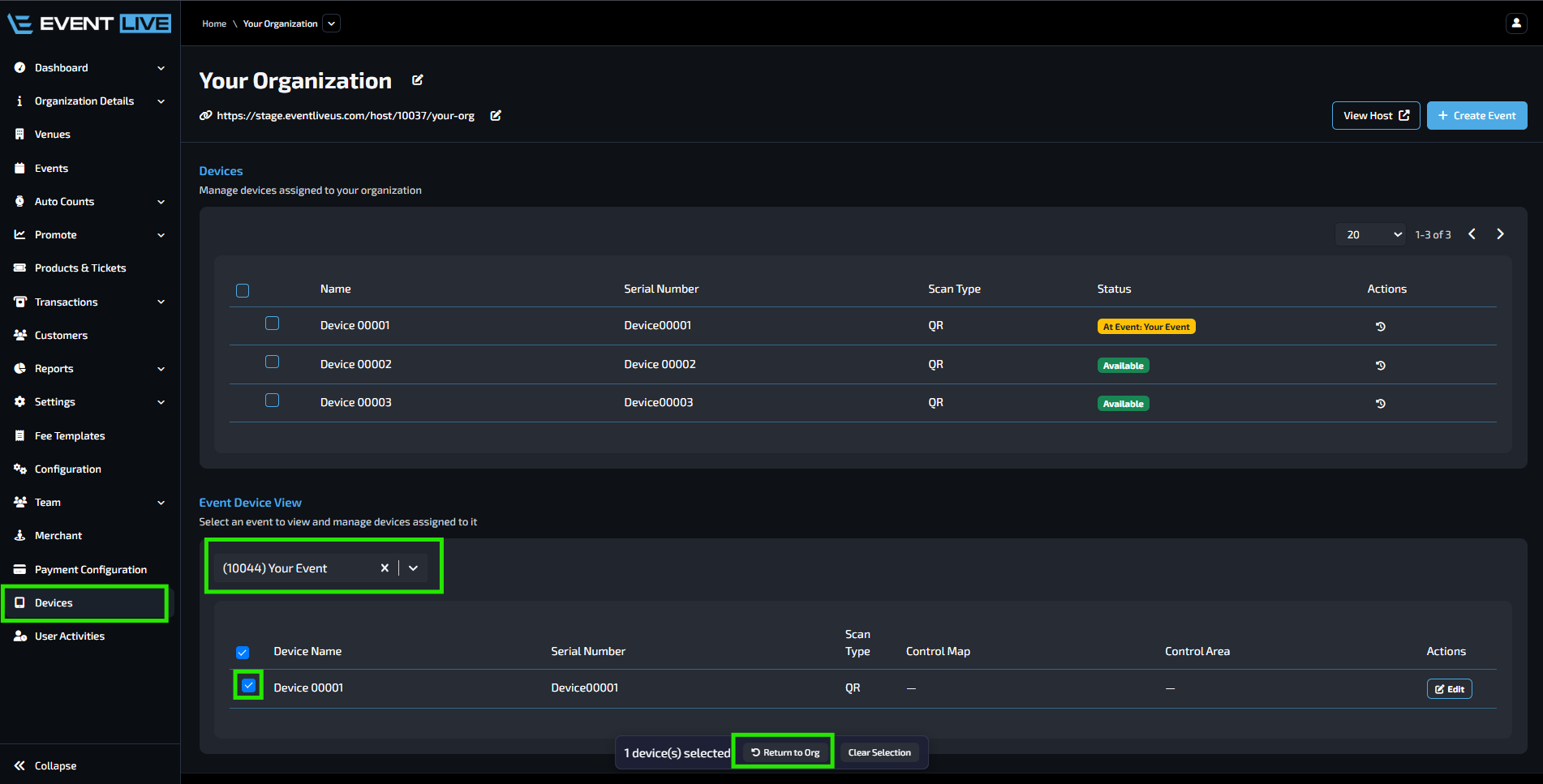
The device will now appear as Available under the Devices section. You can then:
Reassign the device to another event, or
Return the device to EVENT Live.
⚠️ Important: A device assigned to an event cannot be assigned to another event at the same time. It must first be returned to the organization and marked as Available.
II. Return a Device to EVENT Live
Once the event is over and the borrowed devices have been successfully shipped back to EVENT Live:
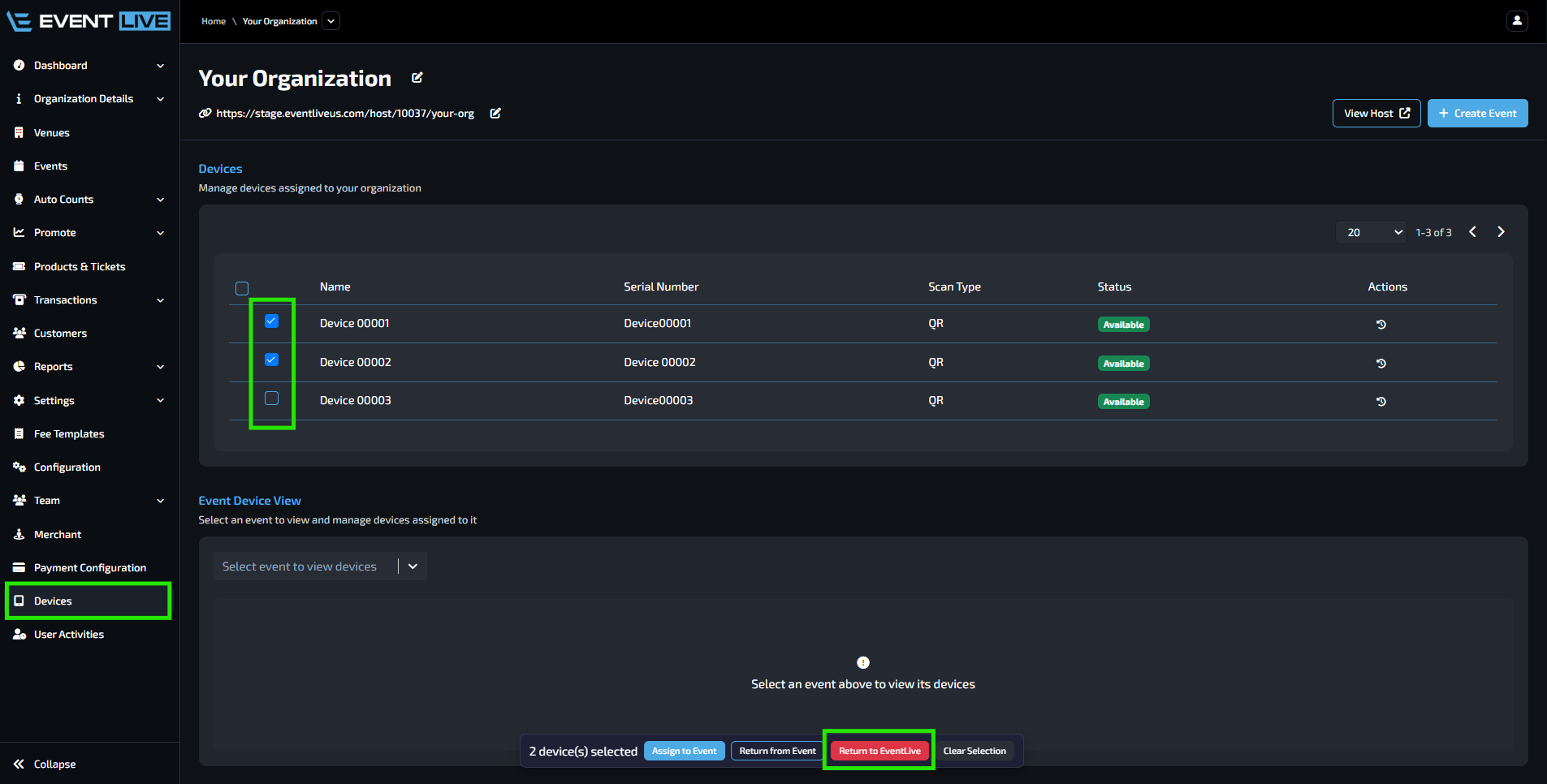
The devices will disappear from your organization's device list once successfully returned.
This means the devices are now back with EVENT Live and can be assigned to a different organization or event.
FAQs
Can I assign a device to multiple events?
No. A device can only be assigned to one event at a time. You must first return it to your organization and make it Available before assigning it to another event.
What happens when I select Return to Org?
The device is removed from the event assignment and becomes Available under your organization's Devices section. You can then assign it to another event or return it to EVENT Live.
When should I select Return to EVENT Live?
Select Return to EVENT Live after the event is complete and the borrowed device has been shipped back to EVENT Live.
What happens after I return a device to EVENT Live?
The device will disappear from your organization's device list and will become available for EVENT Live to assign to another organization or event.
Why can't I assign a device to another event?
The device may still be assigned to another event. First return it to your organization so its status changes to Available, then you can assign it to another event.