

EVENT Live allows you to connect supported marketing platforms to your organization and enable them on individual events. This gives you control over which events send customer and order data to your preferred marketing providers.
✅ Why It Matters
Once an integration is enabled for an event, new order data is synchronized automatically, helping you:
Build and grow your customer database in real time.
Trigger automated email and SMS campaigns.
Create audience segments based on ticket purchases.
Run targeted marketing campaigns before and after your event.
Keep customer information consistent across your ticketing and marketing platforms.
📚 Official Provider Documentation
Before connecting a marketing integration, make sure you have:
✅ An active account with the provider
✅ Administrator or API access
✅ The required credentials (API Key, Bearer Token, or OAuth credentials)
If you need additional help obtaining your credentials, refer to the provider's official documentation:
Using the official documentation ensures you're following each provider's latest authentication and setup requirements.
Connecting an Integration Provider
To connect a marketing provider to your organization:
From the left navigation menu, select Promote → Integrations.
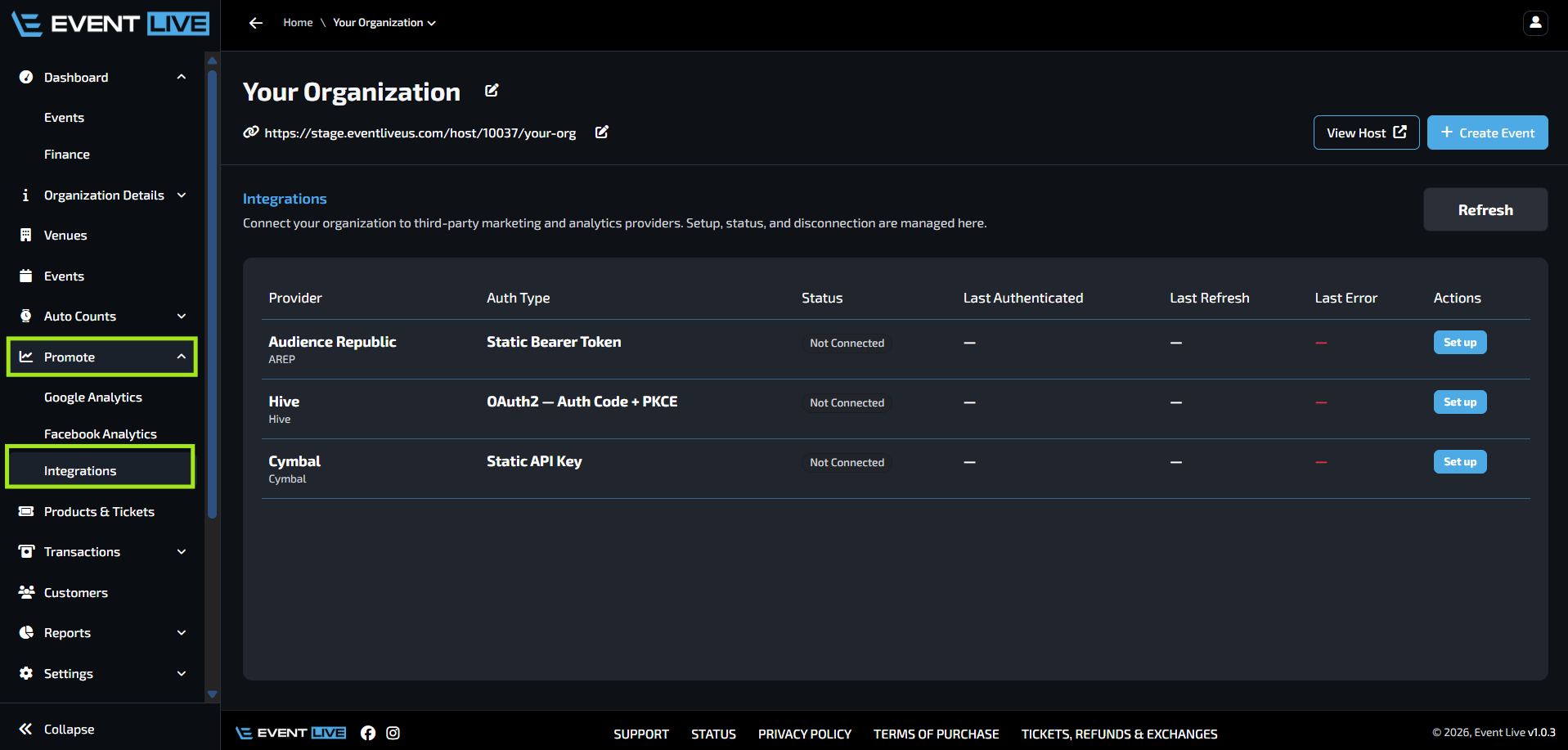
The Integrations page displays all marketing providers currently supported by EVENT Live:
Audience Republic
Hive
Cymbal
Locate the provider you want to use and click Setup under the Actions column.
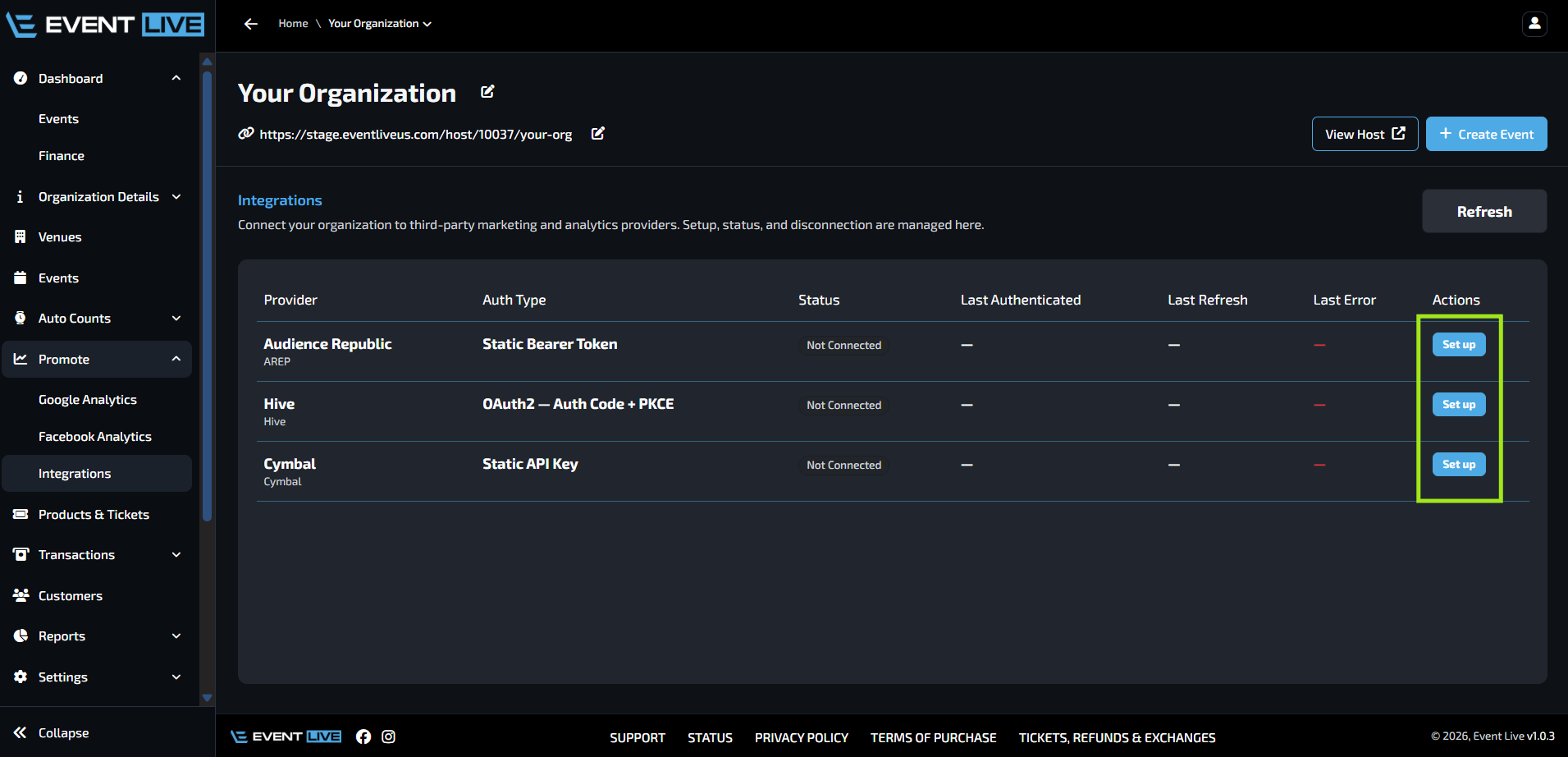
I. Audience Republic
Audience Republic requires a Static Bearer Token.
II. Hive
Hive is much simpler, just click connect and login to your Hive Brand Account
III. Cymbal
Cymbal requires an API Key.
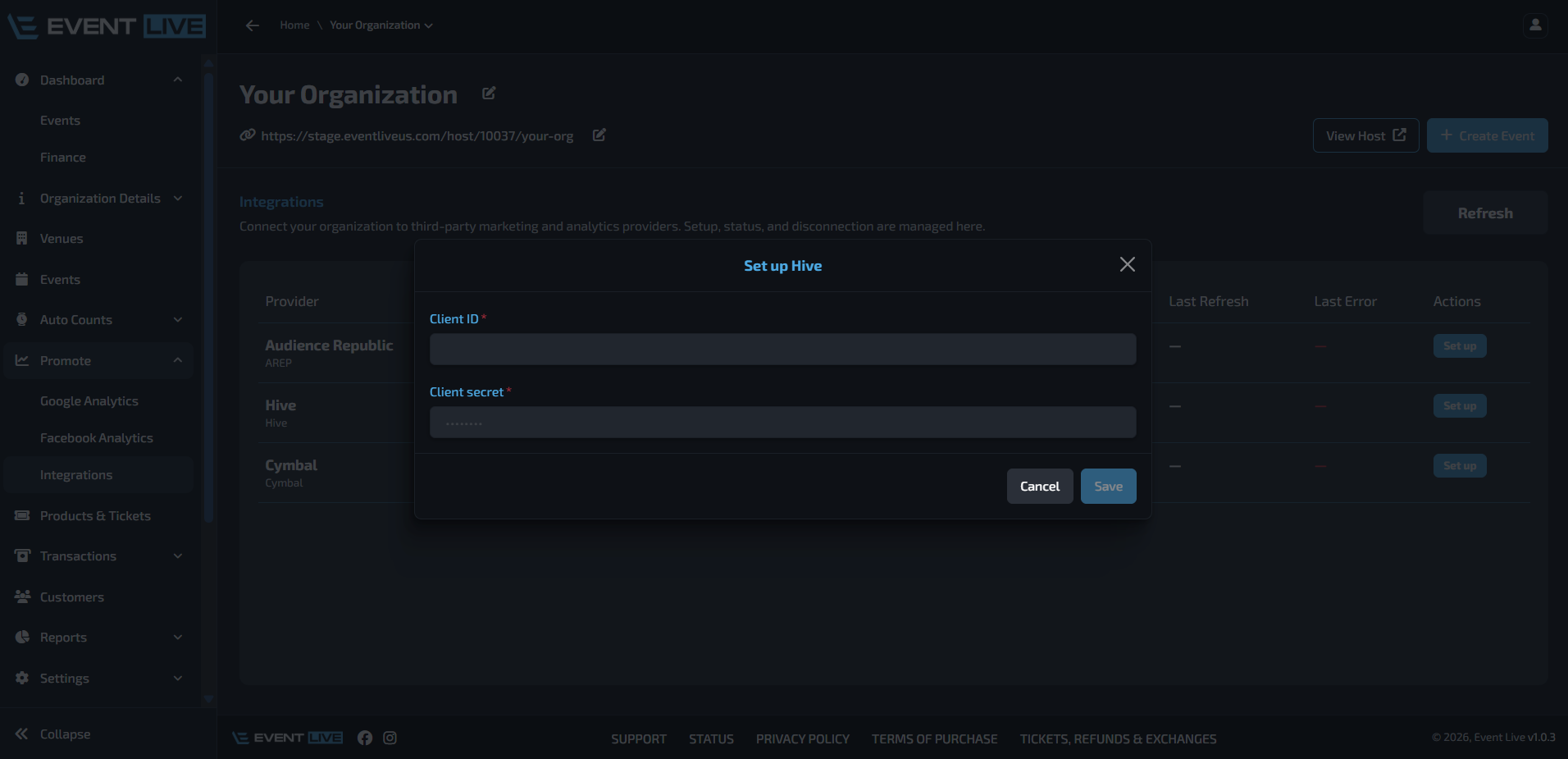
However, if you no longer wish to use a provider, click Disconnect.
Disconnecting a provider will:
Remove it from the Integrations page on all Event Dashboards.
Prevent it from being enabled on any event.
Stop future data synchronization until it is connected and enabled again.
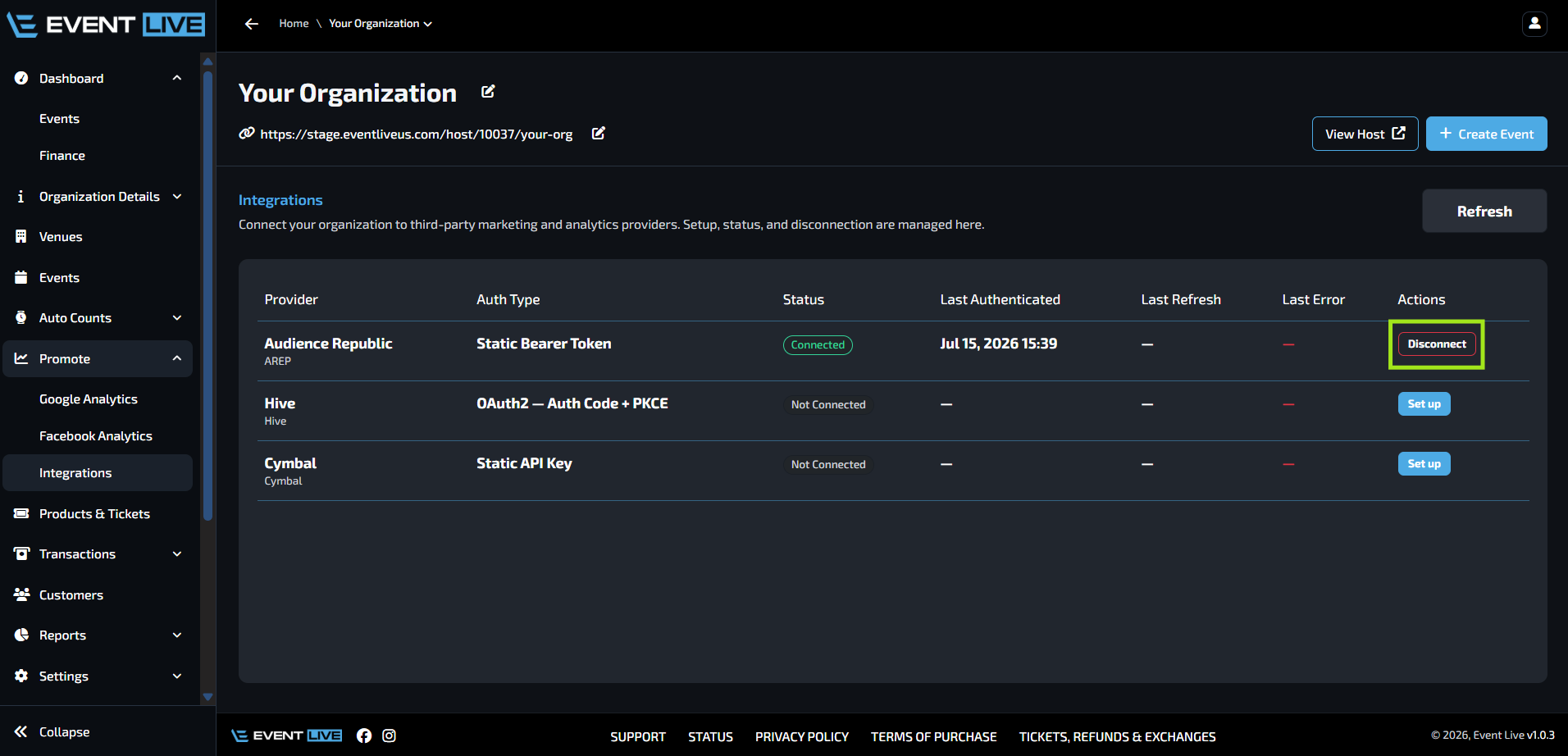
Enabling an Integration for an Event
Connecting a provider at the organization level does not automatically enable it for your events. Each event must be configured individually.
To enable an integration:
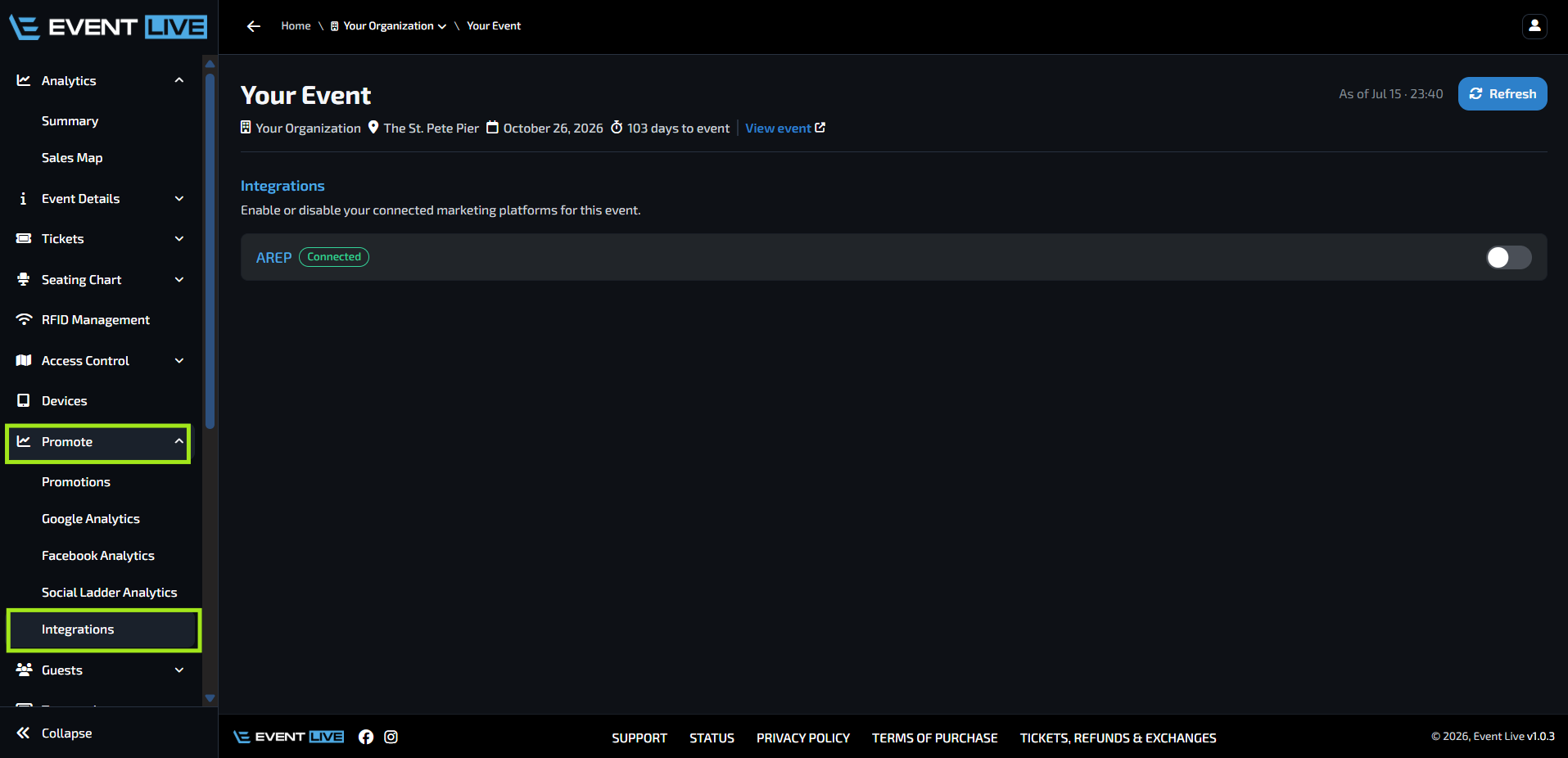
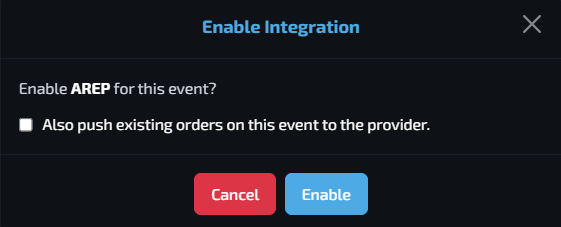
Enable the desired provider using the toggle switch on the far right.

Enabled (Checked) - Existing customer and order data for the event will immediately be pushed to the selected marketing platform. Choose this option if you want your provider to receive both historical and future orders.
Disabled (Unchecked) - Only the event itself will be created within the marketing platform. Existing orders will not be synchronized, but all new orders placed after the integration is enabled will automatically be sent to the provider.
EVENT Live supports enabling multiple marketing platforms simultaneously. You can enable Audience Republic, Hive, Cymbal on the same event at the same time.
Each integration operates independently, meaning every enabled provider will receive eligible order data according to its own connection without affecting the others.
FAQs
Will disabling an integration delete my data from the marketing platform?
No. Disabling or disconnecting an integration only stops future data from being synchronized. Any data that was previously sent to the marketing platform will remain there unless you remove it directly from that platform.
What happens if an integration temporarily fails?
If an integration encounters an issue, the Last Error field on the Organization Integrations page will display the most recent error timestamp. Verify your credentials or connection settings before attempting to reconnect or refresh the integration.
Do I need separate credentials for each event?
No. You only need to connect a provider once at the organization level. After that, you can enable or disable the integration for individual events without re-entering your credentials.
Will attendees know that their information is being synchronized?
No. The synchronization happens automatically in the background and does not affect the attendee's checkout experience or ticket delivery.
Can I enable an integration after ticket sales have already started?
Yes. When enabling an integration, you'll be asked whether you want to push existing orders to the marketing platform. This allows you to include customers who purchased tickets before the integration was enabled.
Does disabling an integration affect ticket sales?
No. Disabling an integration only stops data synchronization with the selected marketing platform. Ticket sales, payment processing, and ticket delivery continue to function normally.
Can different events use different marketing platforms?
Yes. Integrations are enabled on a per-event basis, so you can choose which connected marketing platform(s) each event uses.
Are customer records updated in real time?
New orders are automatically synchronized after an integration has been enabled. The timing of when the data appears in your marketing platform may vary depending on the provider's processing.
What should I do if my credentials change?
If your API Key, Bearer Token, Client ID, or Client Secret changes, update the credentials in Organization Dashboard → Promote → Integrations to restore a successful connection.