Hive is a marketing platform that helps event organizers turn ticket buyer data into targeted email and SMS campaigns. To connect EVENT Live to Hive, you'll need two credentials from Hive's Partner Portal: your Client ID and Client Secret.
Unlike some integrations, Hive works on a push-based model — EVENT Live sends contact, order, and event data to Hive rather than Hive pulling it from us. Requests are acknowledged immediately, then processed in the background, and data typically appears in Hive within minutes (up to an hour during any beta periods).
What You'll Need
An email address that has been registered as a portal admin for your organization
Access to that email inbox (Hive sends a one-time login code — there's no password)
Confirmation that your organization has already been onboarded as a Hive API partner
If your organization isn't yet a Hive API partner, contact your Hive representative to start the onboarding process. You'll receive a welcome email from Hive once your portal access is provisioned — at that point, you can follow the steps below to log in and retrieve your credentials.
How To Get Your Hive Client ID and Client Secret
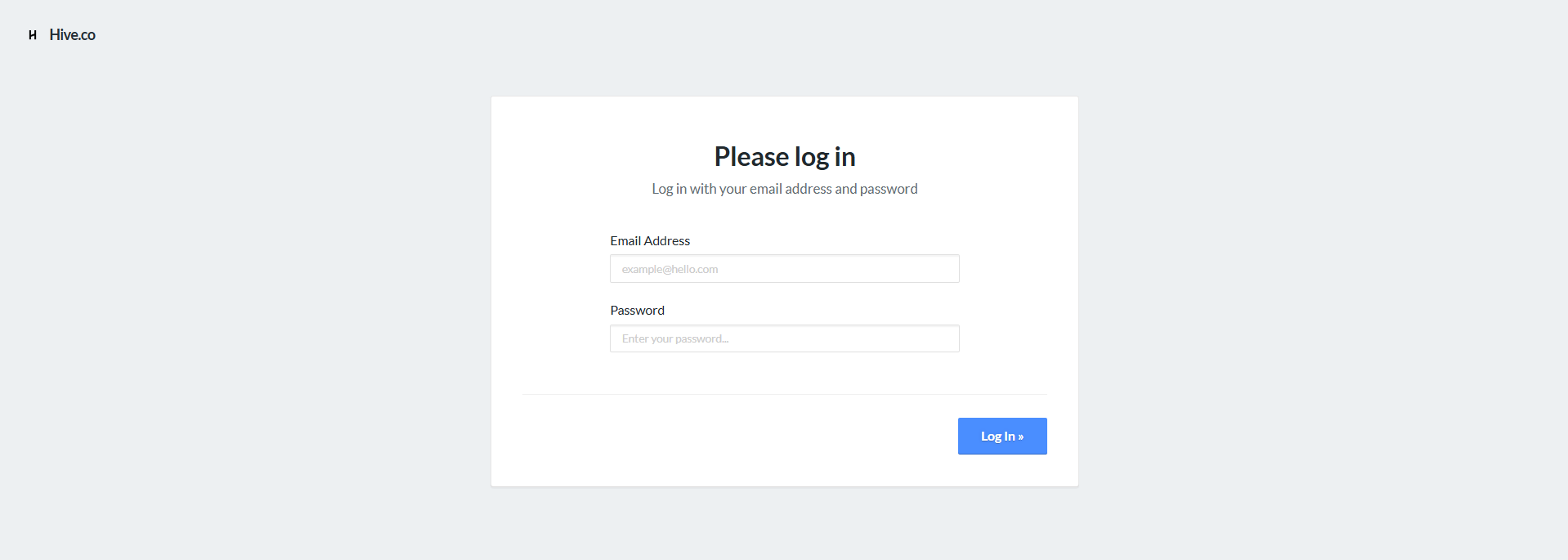
Enter the email address that was registered when your organization was onboarded.
Check that email inbox for a 6-digit verification code from Hive. The code expires after 10 minutes. Enter the code on the portal login screen to sign in.

Once you're logged into the portal, your Client ID is displayed directly on the dashboard. Copy this value into EVENT Live.
Your Client Secret works differently than your Client ID:
Hive only stores a hashed version of your secret — they never display the original value again after it's first generated.
To get a secret, you'll need to rotate it from the portal. This generates a brand-new secret and shows it to you one time, in plaintext.
Copy it immediately and store it somewhere secure, like a password manager or your secrets manager. If you navigate away or lose it, there's no way to retrieve the same secret again — you'll have to rotate a new one.
⚠️ Important: Rotating your secret immediately invalidates the old one. If you already have a live integration running, rotate during a maintenance window and update your credentials right away to avoid any interruption in data syncing.
Connecting it to EVENT Live
From the left navigation menu, select Promote → Integrations.
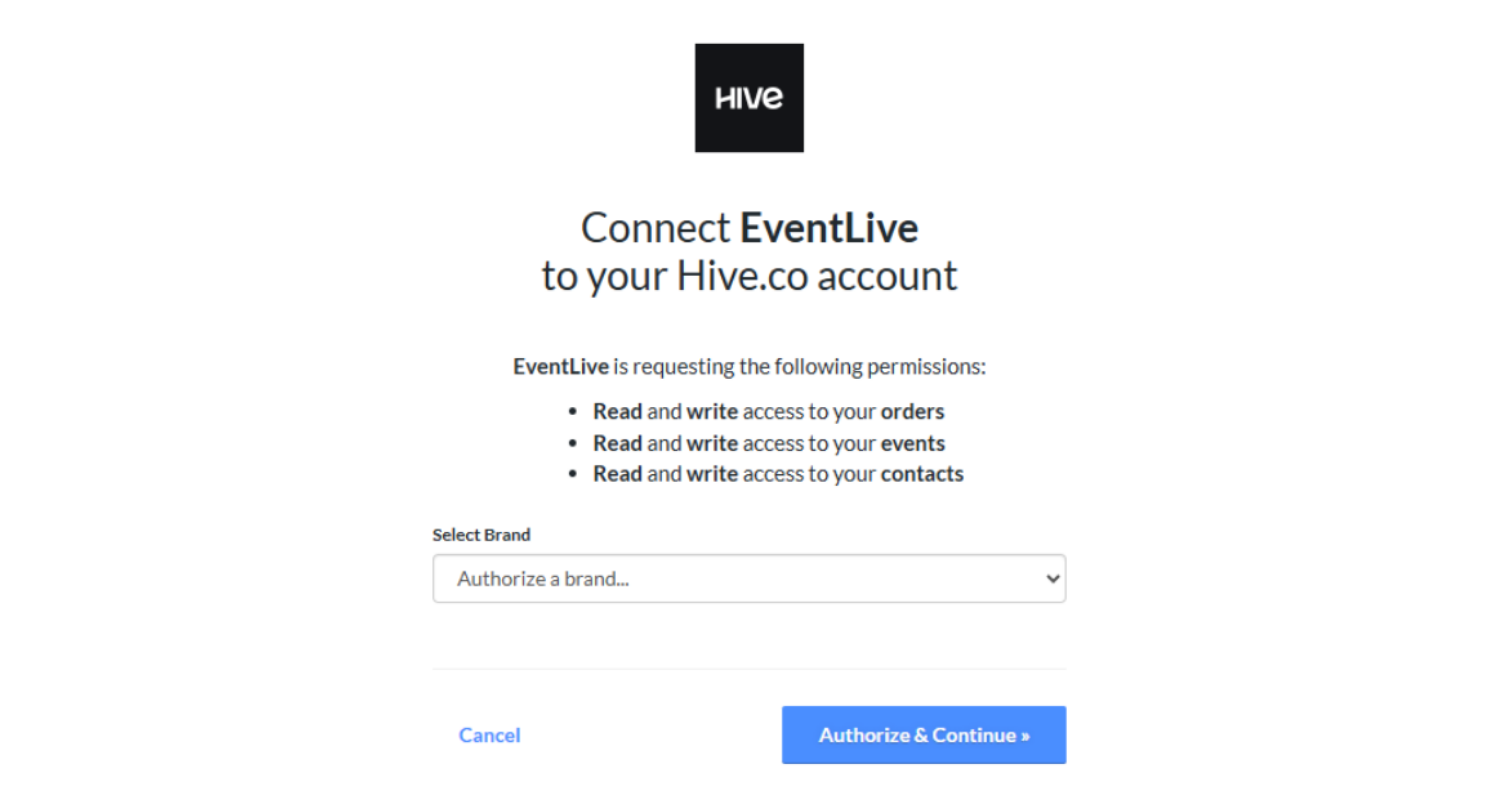
After entering the credentials, a Connect button will appear. Click Connect and you will be redirected to Hive's secure login page.


To continue the process and enable Hive on a particular event, refer to "Setting Up Integrations" Article: Enabling an Integration for an Event.