

Managing shipping Orders: Tracking, Filtering, and Updating Shipping Details
The Fulfillment page provides a centralized, flexible system for managing all delivery aspects of your event orders.
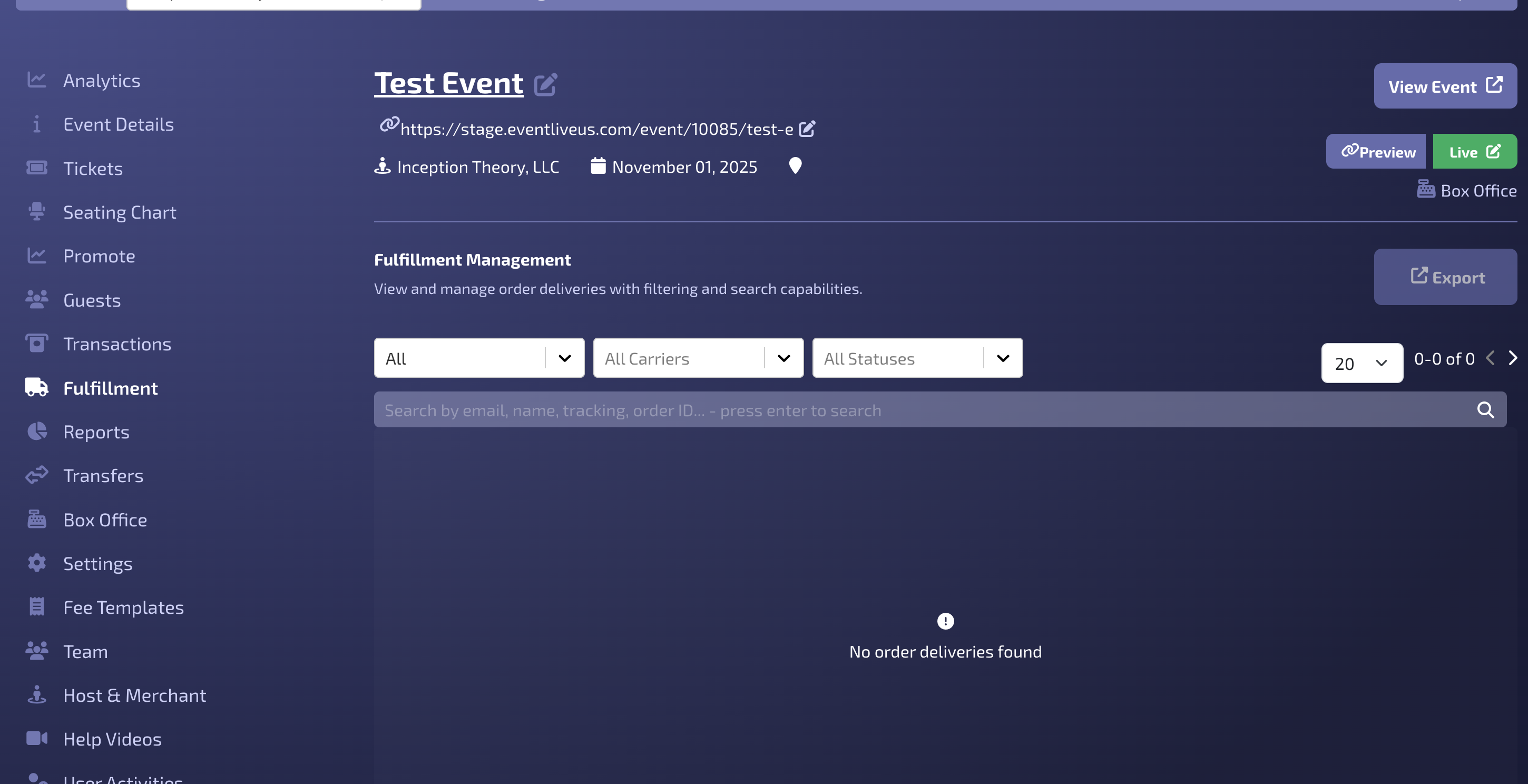
🔎 Filtering and Searching Orders
You can easily sort and filter your orders using a combination of options to find exactly what you need.
Filter Category | Options | Description |
Address Status | All Orders (default) or filter by selecting: | Quickly identify orders that require a shipping address. |
Carrier | All Carriers or select a specific carrier company | Filter orders by the delivery service being used. |
Delivery Status | All Statuses or refine by a specific status: | Track the progress of orders through the delivery pipeline. |
Use the search bar to find a specific order by its Order Id, Customer Name/Email, Tracking Number, etc.
⚙️ Updating and Managing Order Shipping Information
You have the flexibility to update single orders individually or modify multiple orders simultaneously using bulk actions.
1. Individual Order Edits
To add or update fulfillment details and status for single order, click the Edit button (pencil icon) on the far right side of the order row. The shipping address form will appear, allowing you to modify and save the shipping details.
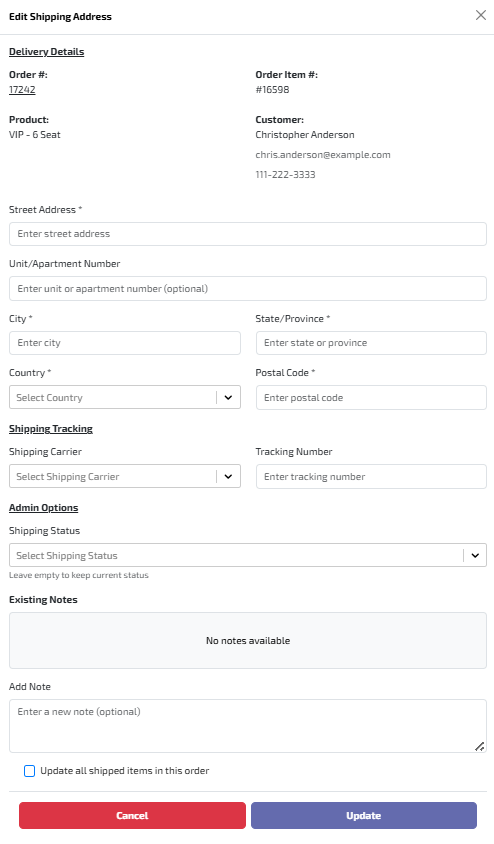
Through this page, under Shipping Tracking, you can manually add a ticket’s shipping information:
Add shipping carrier

Add the ticket’s tracking number. Only when a ticket’s tracking number has been added, can the customer see the tracking button which will allow them to track their order from the carrier’s website.
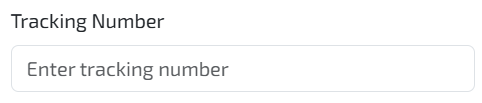
Add the ticket’s order status

You can also view current order and shipping information using View (eye icon).
2. Bulk Actions
To apply the same update to multiple orders at once:
Click the checkbox (☑️) in front of each order you wish to modify.
Once selected, below action buttons will appear at the bottom of the screen.

Use the buttons to perform the desired action:
Update Carrier: Change the carrier company for all selected orders.
Update Status: Change the delivery status (e.g., from 'Shipped' to 'Delivered') for all selected orders.
Add Note: Attach an internal note (e.g., "Manual Label Created") to the selected orders.