

Easily manage bulk comp and 3rd Party Order uploads with these quick steps.
Uploading Comp/3rd Party Orders in Bulk to Eventlive
There are two ways to upload tickets using import sales button
Go to transactions tab and find Import Sales button on the right side OR
On your event dashboard’s side panel, click Box Office to open the Box Office page then click Import Sales button
Whichever way you follow, once you click on Import Sales, you can now access the bulk comp upload page, where you can:
Import Comp Tickets
Import 3rd Party Tickets (for tickets purchased outside EVENT Live ONLY)
To upload either Comp or 3rd Party tickets, you will need to prepare a CSV file that follows the required format:
Read the CSV Requirements carefully
Ensure that you follow the correct spreadsheet format:
firstName (required)
lastName (required)
email (required)
quantity (required)
ticketName (required)
phoneNumber
address1
address2
city
state
zipcode
country (two letter code)
note1
note2
note3
note4
note5
note6
note7
note8
note9
note10
**reference number - only used for adding Order IDs which were issued from another platform. These Order IDs are also searchable on EVENT Live as the EVENT Live Order Number is different from the 3rd party platform.
Make sure that the Ticket Names entered in the spreadsheet column are valid. You can verify the correct format under the CSV requirements
Download the sample CSV as a reference if needed
Under Import Type, select either Comp or 3rd party
Optionally, enable Suppress Email if you want to add orders without sending emails to customers about order creation
Click Choose File and upload your prepared CSV file
Once the file is processed, the system will indicate whether the import was successful or if errors were found
If there are errors, the system will specify what needs to be corrected, and you’ll need to update and re-upload the CSV
When the file is successfully imported, it may take a few seconds or minutes—depending on the number of entries—to complete the comp creation. Event admins will receive an email once the import is done, along with the results indicating successful or failed entries.
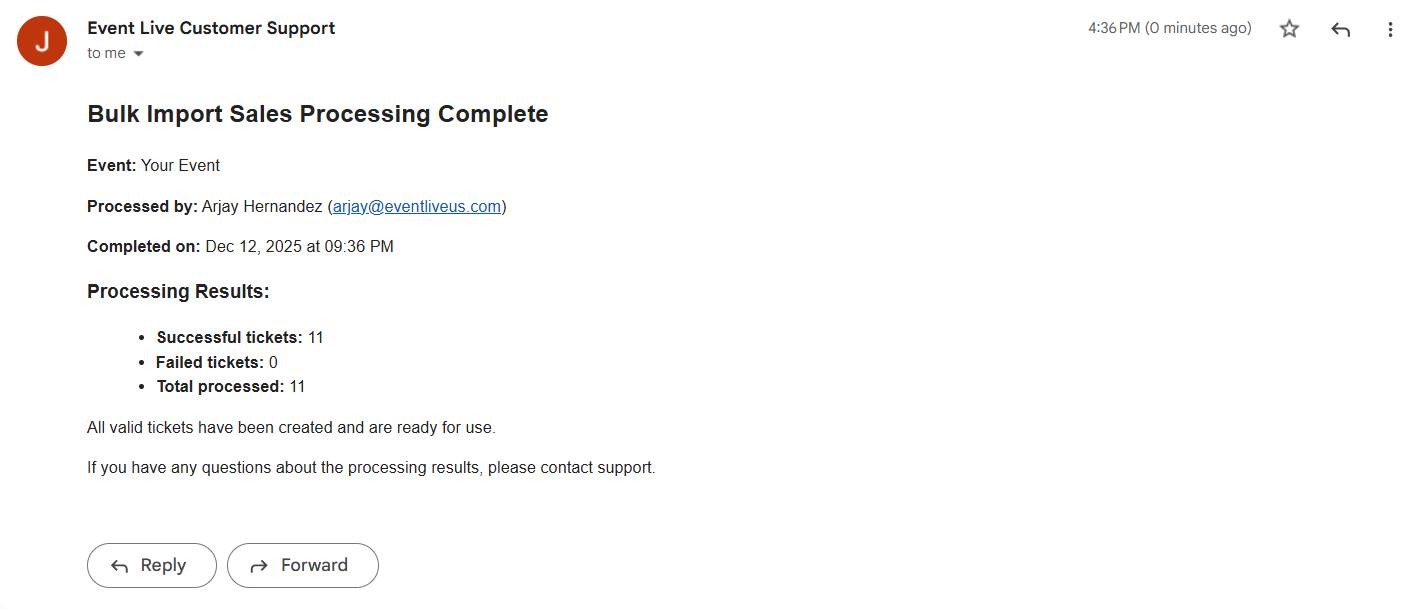
Image 1: Sample Email Result for Bulk Import Sales
Once you have received the email result, you have successfully added ticket orders in bulk on EVENT Live!