

What this setup does
Zero-Discount Tracking: Creates promo codes that track sales without reducing the price.
Universal Application: No specific products are required; codes apply to the entire store.
Automated Links: Each promo code generates a unique tracking URL.
Performance Data: Sales are tracked via the Sales by Affiliate Code report.
Step-by-step: Create Affiliate Promo Codes
1. Navigate to Promotions
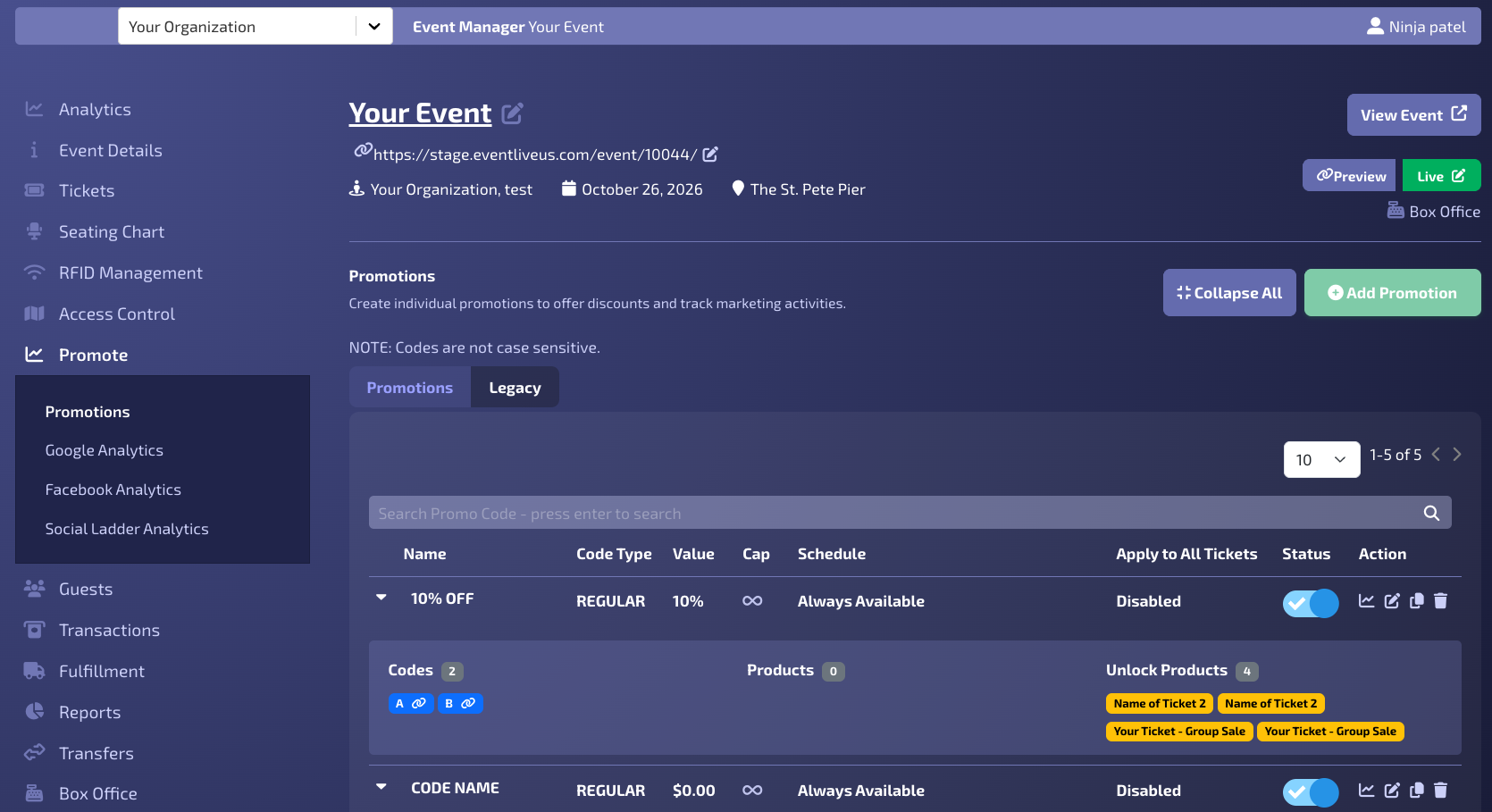
Go to Promote → Promotions.
Click Add Promotion.
2. Enter Promotion Details Only two fields are strictly necessary for this setup - Name and Codes:
Name: Enter clear name for that Promotion.
Products related fields: Leave empty (this allows tracking on all purchase).
Any Dates: Leave empty (this ensures codes never expire).
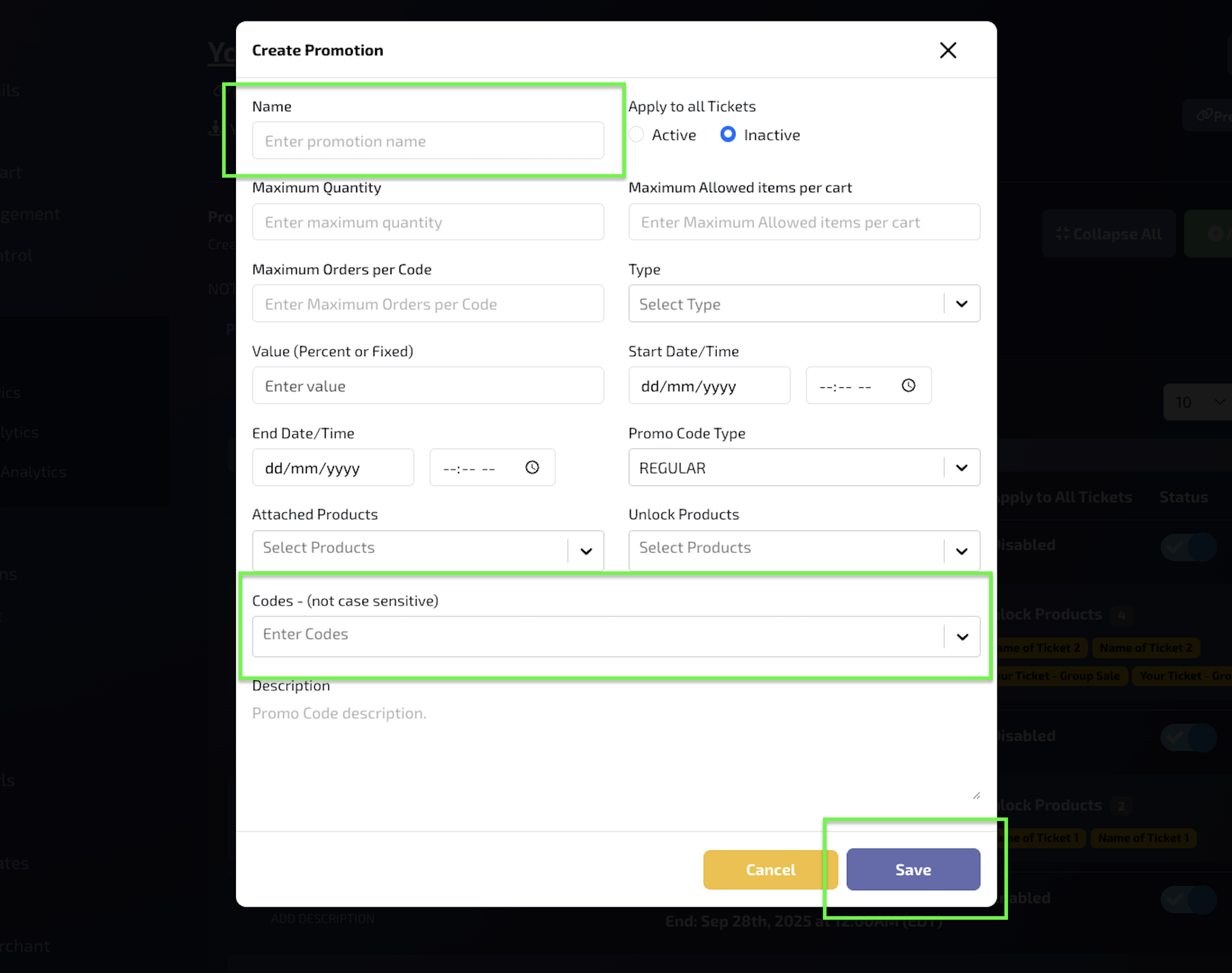
3. Add Promo Codes (Bulk or Manual) Scroll to the Codes field (second to last field) and use one of the following methods:
The Excel Shortcut: Copy an entire column from Excel and paste it directly into the box.
The Comma Shortcut: Paste a list of codes separated by commas to add them all at once.
Manual Entry: Type a code and press Enter.
⚠️ Important: > * You must see a close (×) icon next to each code. If the icon is not there, the code is not registered.
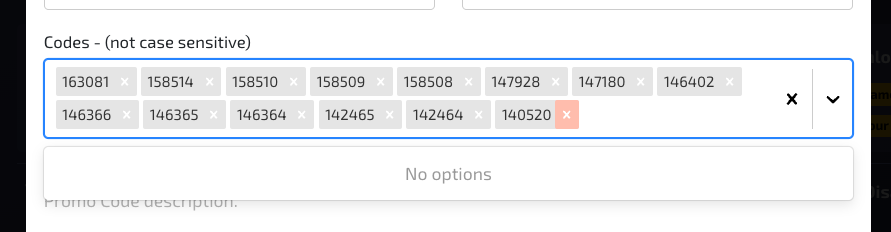
4. Save the Promotion
After all codes are populated and show the (×) icon, click Save.
Share Tracking Links with Affiliates
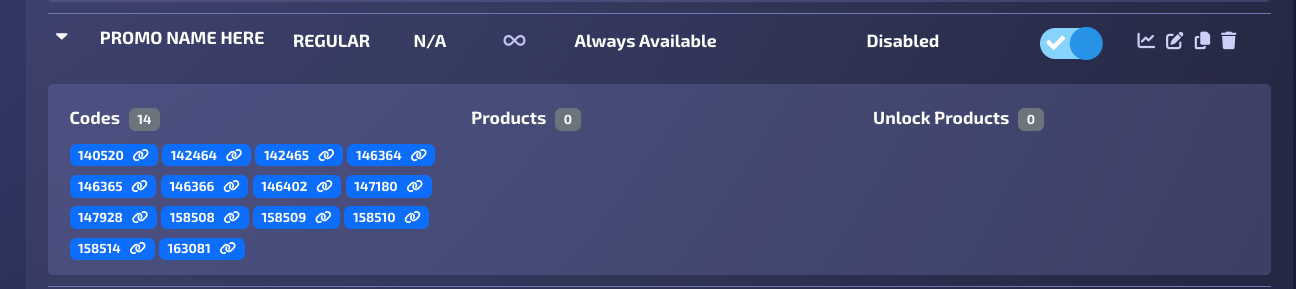
From the same page (Promote > Promotion) open your recently created Affiliate Promotion
In the Codes section, look for the copy link icon next to each individual code. Click the icon to copy the unique tracking URL.
Share the specific link with the corresponding affiliate. Any purchase made via this link is automatically attributed to them.
Reporting: Track Sales by Affiliate
From the side panel, go to Reports (located on the same page or main navigation).
From the dropdown, open the Sales by Affiliate Code tab.
Search or filter by your Promotion Name or Individual Code. This view displays all sales, quantities, and revenue attributed to each affiliate.
From the Action menu, click Export. This will generate a CSV file of the data and send it to your email for download.
Notes / Tips
Efficiency: Copy-pasting from Excel is the fastest way to handle large groups of affiliates.
Flexibility: Since no products or dates are attached, these codes work globally and indefinitely.
Verification: Always double-check that the (×) icon appears after pasting or typing before hitting Save.
No Discount: These codes act purely as "trackers"—the customer pays full price, but the affiliate gets the credit.