

The Auto Apply Promotion feature allows you to share a promo code or unlock code through a direct link or QR code. When customers use the link or scan the QR code, the promotion is automatically applied during checkout, creating a faster and more convenient purchasing experience.
✅ Why This Matters
Auto Apply Promotions help reduce friction during checkout by eliminating the need for customers to manually enter a promo or unlock code.
This can help you:
Improve the customer experience with a faster and simpler checkout process.
Reduce errors caused by customers entering promo or unlock codes incorrectly.
Make promotions easier to share across digital and physical marketing materials.
Increase promotion usage by automatically applying the offer when customers access the event through the shared link or QR code.
Create a more seamless marketing experience across social media, email campaigns, websites, flyers, posters, and onsite signage.
For online campaigns, you can share a clickable link. For onsite or printed marketing materials, you can use a QR code that customers can scan with their mobile device.
Before You Begin
To use the Auto Apply Promotion feature, make sure you already have an active promotion created for your event.
If you haven't created a promo code or unlock code yet, please refer to our article on
If you already have an active promotion set up, follow the steps below.
Auto Apply Using a Link or QR Code
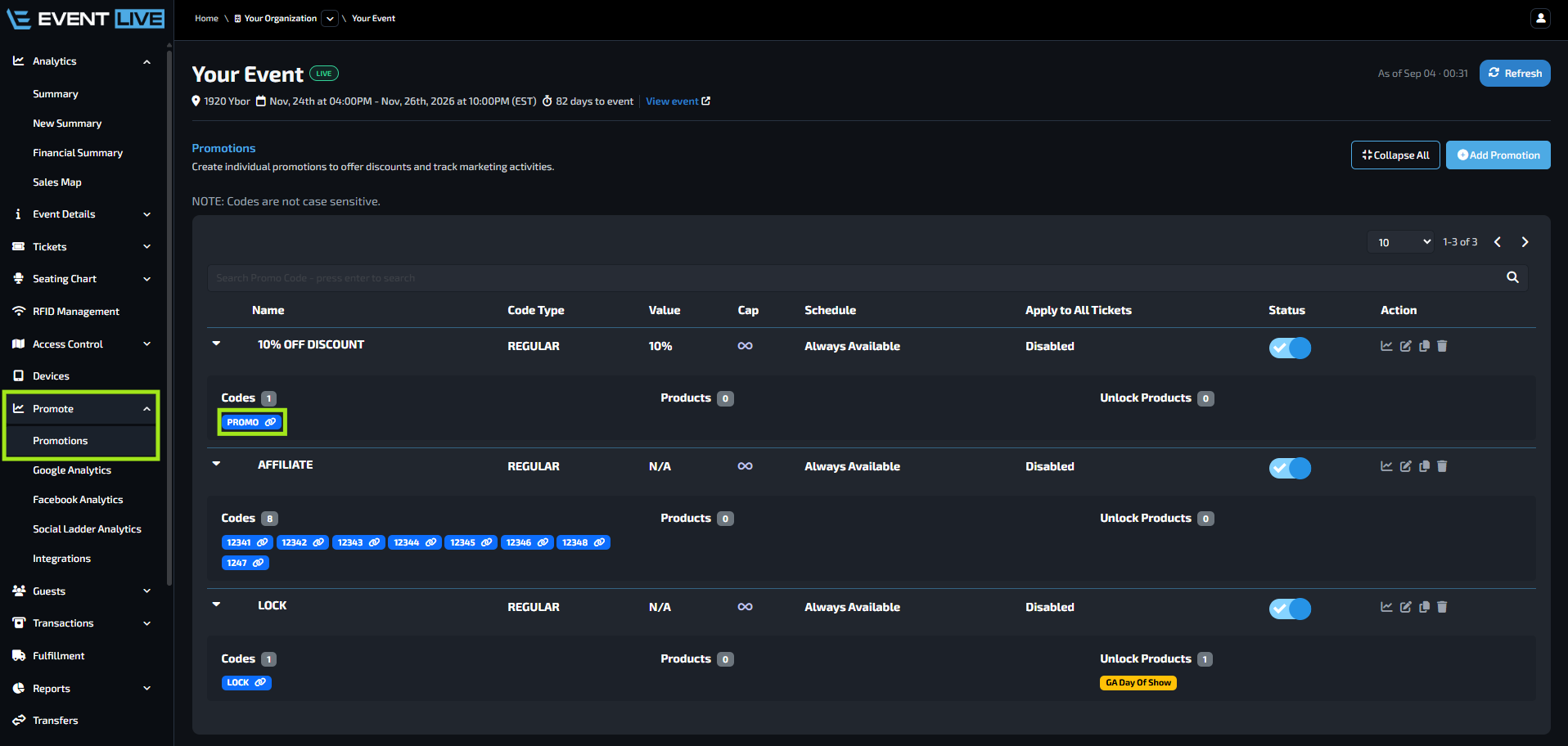
From your Event Dashboard, navigate to Promote → Promotions
Find the promotion you want to enable for Auto Apply.
Click on the promo code associated with the promotion.
Check the box for Auto Apply Promotion.
Once enabled, you can choose how you want to share the promotion with your customers.
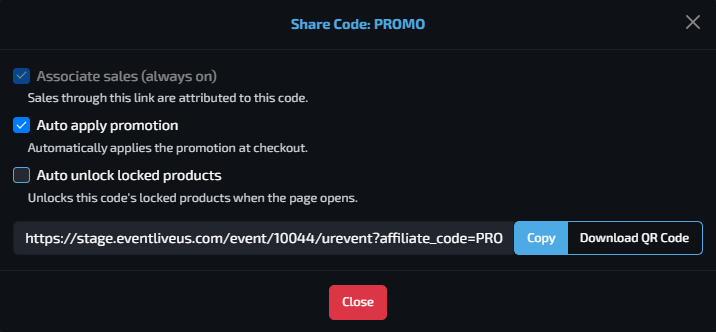
You can share your Auto Apply promotion using either a Link 🔗 or a QR Code 📱
🔗 Option 1: Share as a Link
Select Link as the Share Type, then click Copy.
You can share this link through:
📧 Email campaigns
📱 Social media
🌐 Websites
📣 Digital advertisements
💬 Text messages
📢 Other online marketing materials
When customers click the link, they will be redirected to your event page. They can select their tickets and proceed to checkout, and the promotion will automatically be applied to their order.
📱 Option 2: Share as a QR Code
You can also select QR Code as the Share Type.
Customers can scan the QR code using their mobile device, which will take them to your event page with the promotion automatically applied.
This is especially useful for:
🪧 Posters
📄 Flyers
🖼️ Banners
🎪 Event signage
💳 Table cards
🖨️ Printed marketing materials
Best Practices
Use clickable Auto Apply links 🔗 for digital marketing campaigns and QR codes 📱 for printed or onsite promotional materials.
This provides customers with a convenient way to access their promotion while minimizing the steps required to complete their purchase.
FAQs
Why isn't my promotion being applied automatically?
Check that the promotion is still active and that the Auto Apply Promotion option is enabled. Also make sure the customer is accessing the event through the correct Auto Apply link or QR code.
Can I change or update a promotion after enabling Auto Apply?
Yes, the same link will stay the same.
Can customers use an Auto Apply promotion with any ticket?
Not necessarily. The promotion will only apply to the ticket types and conditions configured within the promotion.
But with a promotion that is applied to all ticket types, yes, customer can use it with any ticket.
Can I use the same Auto Apply promotion for multiple marketing campaigns?
Yes. You can use the same Auto Apply link or QR code across multiple marketing channels as long as the promotion remains active.
Can a customer manually enter the promo code instead?
Yes, provided the promotion is configured to allow the promo code to be entered manually. Auto Apply simply provides an alternative, more convenient way to apply the promotion.
What happens when the promotion expires?
Once the promotion is no longer active or has reached its configured limits, customers will no longer be able to use it through the Auto Apply link or QR code.
Can I test the Auto Apply link before sharing it with customers?
Yes. We recommend testing the link before distributing it to confirm that the correct promotion is being applied and that the expected ticket types are available.
Can Auto Apply be used for unlock codes?
Yes. The same Auto Apply concept can be used with eligible unlock code promotions, allowing customers to access the applicable tickets without manually entering the code.