

The Auto Apply Lock Code feature allows you to share a lock code through a direct link or QR code. When customers use the link or scan the QR code, the lock code is automatically applied, giving them access to the applicable locked tickets without requiring them to manually enter the code..
✅ Why This Matters
Auto Apply Lock Codes make it easier for customers to access tickets that are restricted by a lock code while providing a smoother purchasing experience
This can help you:
Simplify the checkout process by removing the need to manually enter a lock code.
Control access to specific tickets while making those tickets easier to access for your intended audience.
Make lock codes easier to share through digital and physical marketing materials.
Provide a more convenient ticket-buying experience for customers who have access to locked ticket types.
Improve promotional campaigns by combining restricted ticket access with clickable links or QR codes.
Before You Begin
To use the Auto Apply Lock Code feature, make sure you already have an active lock code created for your event.
If you haven't created a lock code yet, please refer to our article on
If you already have an active lock code set up, follow the steps below.
Auto Apply Using a Link or QR Code
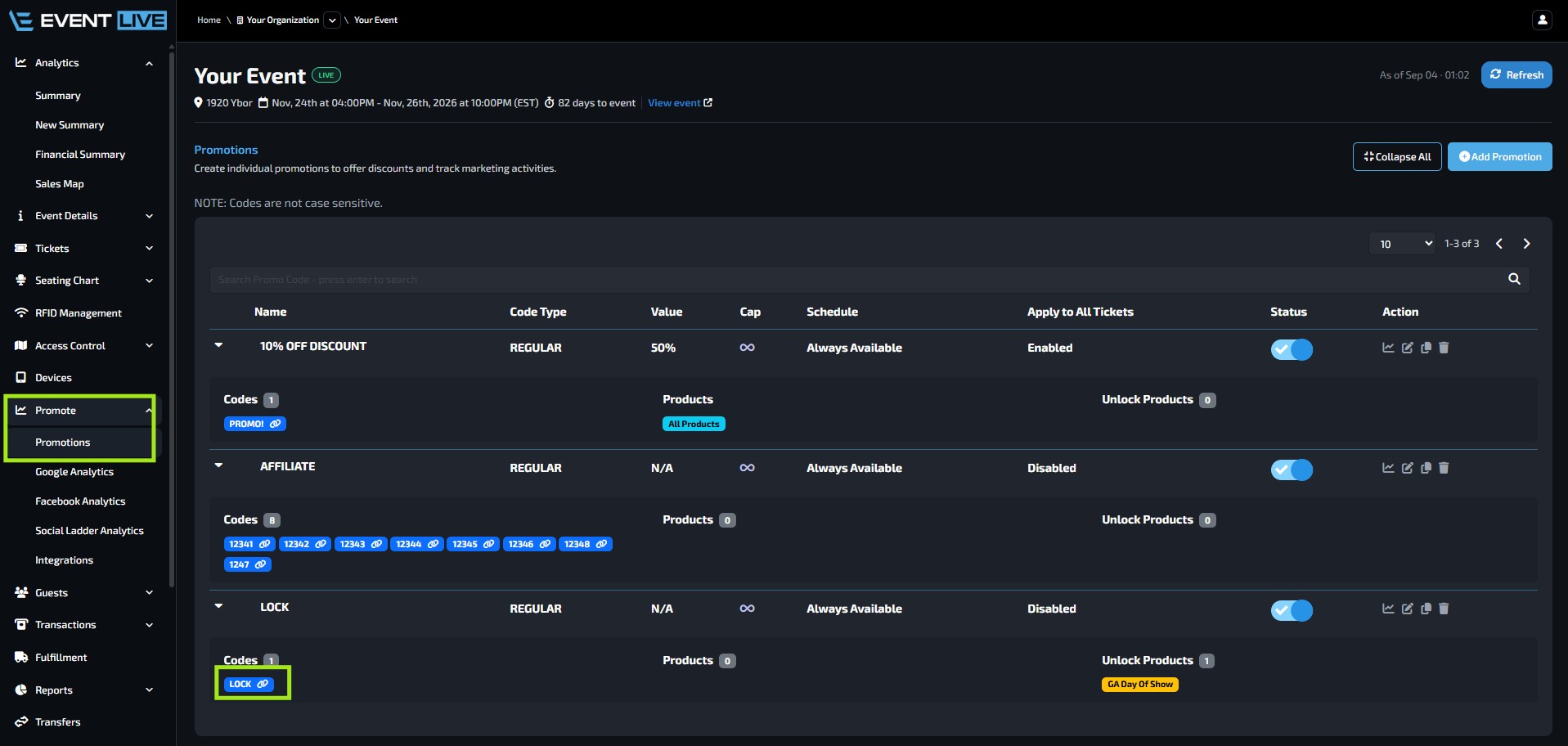
From your Event Dashboard, navigate to Promote → Promotions
Find the promotion you want to enable for Auto Apply.
Click on the promo code associated with the promotion.
Check the box for Auto Unlock Locked Products
Once enabled, you can choose how you want to share this with your customers.
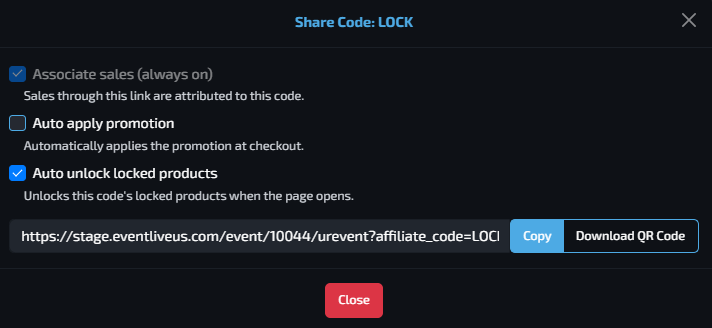
You can share your Auto Apply Lock Code using either a Link 🔗 or a QR Code 📱
🔗 Option 1: Share as a Link
Select Link as the Share Type, then click Copy.
You can share this link through:
📧 Email campaigns
📱 Social media
🌐 Websites
📣 Digital advertisements
💬 Text messages
📢 Other online marketing materials
When customers click the link, they will be redirected to your event page. The applicable locked tickets will become accessible without requiring customers to manually enter the lock code.
📱 Option 2: Share as a QR Code
Customers can scan the QR code using their mobile device, which will take them to your event page and automatically apply the lock code.
This is especially useful for:
🪧 Posters
📄 Flyers
🖼️ Banners
🎪 Event signage
💳 Table cards
🖨️ Printed marketing materials
Best Practices
Use clickable Auto Apply Lock Code links 🔗 for digital campaigns and QR codes 📱 for printed or onsite marketing materials.
Before sharing your link or QR code, we recommend testing it to make sure the correct locked tickets are accessible and the customer experience works as expected.
FAQs
Why can't I access the locked tickets using the Auto Apply link?
Make sure the lock code is still active and that the Auto Apply link is the correct one. Also verify that the locked tickets are currently available for purchase.
Will the Auto Apply Lock Code make all tickets available?
No. Customers will only gain access to the ticket types associated with the lock code and subject to the configured availability and restrictions.
Can I share the same Auto Apply Lock Code with multiple customers?
Yes. You can distribute the same Auto Apply link or QR code to multiple customers, provided the lock code remains active and the applicable tickets are available.
What happens when the lock code expires?
Once the lock code is no longer active or the applicable tickets are no longer available, customers will no longer be able to use the Auto Apply link or QR code to access those tickets.
Can I test the Auto Apply Lock Code before sharing it?
Yes. We recommend testing the link or QR code before distributing it to customers to confirm that the intended locked tickets are accessible.