

Once your tickets are created, you will need to add them to Ticket Channels to make them visible on the Box Office Page. Ticket Channels help organize how your tickets are displayed, making it easier for customers to browse and select the options they need.
Creating Box Office Channels
Box Office Ticket Channels allow you to organize and control how tickets are displayed for on-site sales, making it easier for staff to quickly find and process the correct tickets.
From the Channels Row (Web, Box Office, Point of Sale), select Box Office
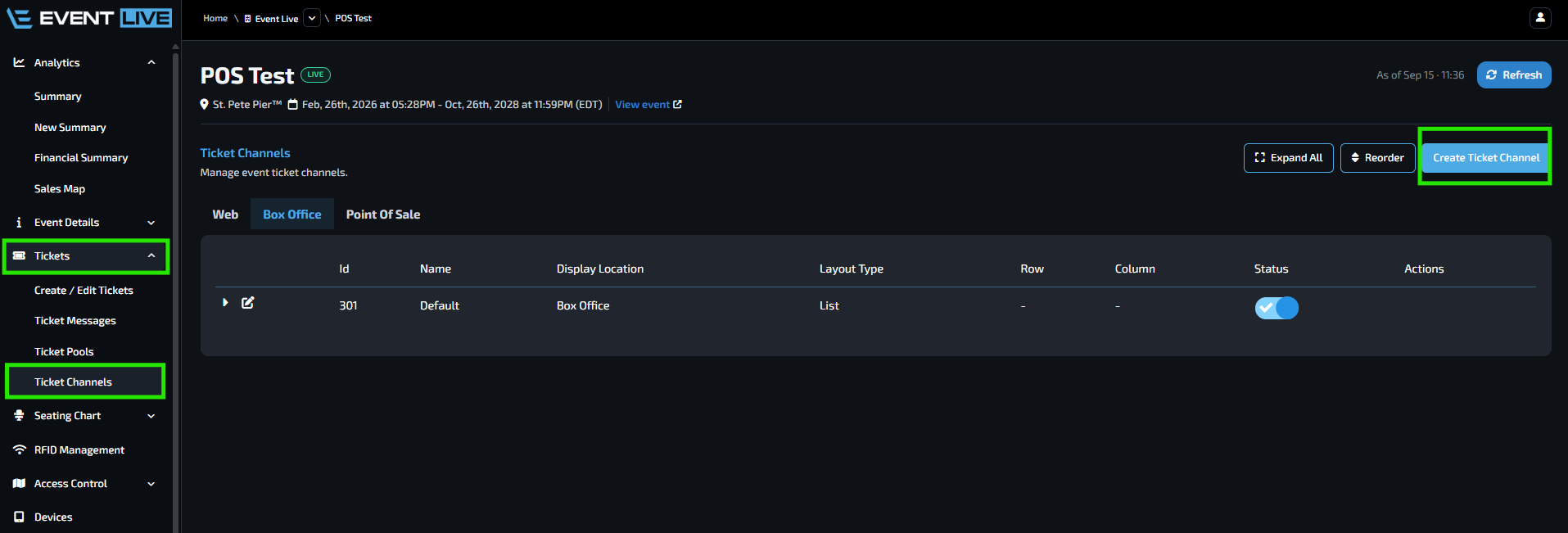
Name of Ticket Channel
(e.g., VIP, General Admission, Group Sales)
This helps organize your tickets so customers can easily find what they are looking for.Layout Type - Select List
Description
Provide additional details about the channel if needed.
Adding Tickets to Box Office Channels
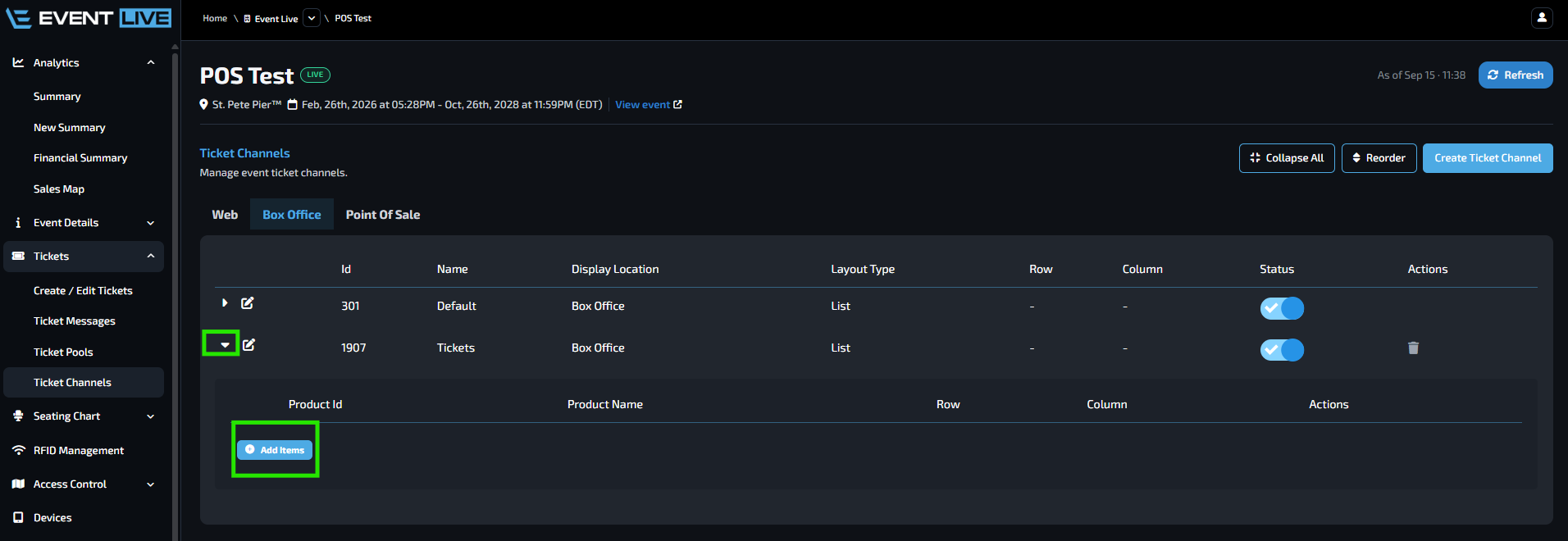
Select the product (ticket) you want to add to the channel
This determines the display order of tickets on the web page (lower numbers appear first).
To remove a ticket, click the trash icon under the Actions column
Note: If you clicked Add Item but did not select a product, you will not be able to save.
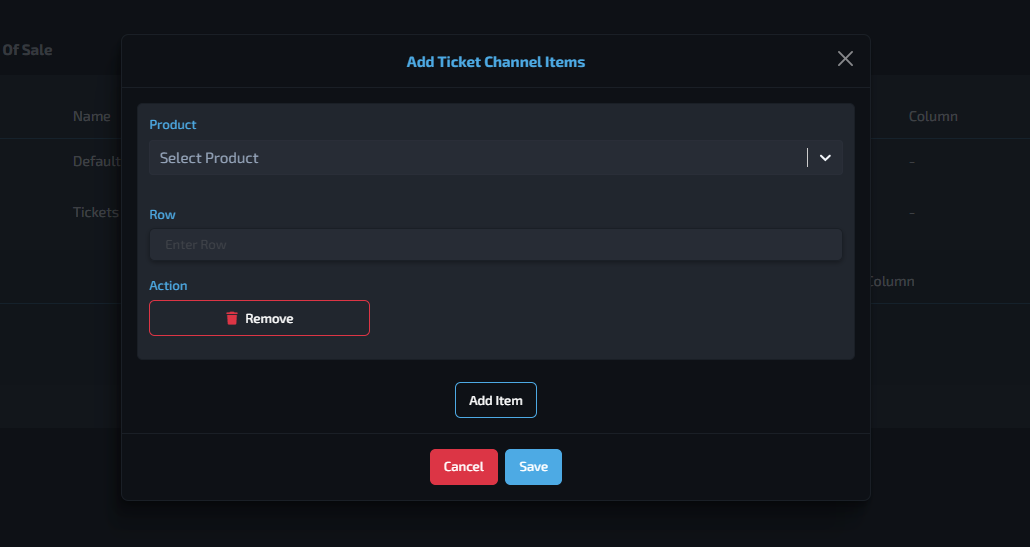
Once tickets are added, the following options will become available:
Delete – Removes selected products from the channel
Reorder Items – Opens a reorder tab where you can drag and drop tickets to adjust their display order
Verifying Ticket Channel Setup
To ensure your Ticket Channels are properly set up and displayed correctly:
You will be redirected to the Box Office Page
If tickets appear on the Box Office, that means that it is now visible and is ready for Box Office purchases
Why This Matters
⚡ Speeds up transactions by helping staff quickly locate the correct tickets
🧭 Reduces errors during checkout by organizing tickets clearly
👥 Improves efficiency during high-volume or peak entry times
🎯 Ensures staff can easily identify priority or commonly sold tickets
🧾 Creates a smoother and more professional checkout experience for customers
🔄 Minimizes confusion when handling multiple ticket types or pricing tiers
🎛️ Gives organizers better control over how tickets are presented at the Box Office
FAQs
What happens if I don’t assign a display order?
If no order is set, tickets may appear randomly, which can slow down checkout. Assigning an order ensures staff can quickly locate tickets.
Will removing a ticket from a Ticket Channel delete it completely?
No, it only removes the ticket from that specific channel. The ticket remains in your system.
How do I control the order of tickets?
You can assign row numbers or use the Reorder Items feature to drag and drop tickets into your desired order.
Do Ticket Channels affect ticket availability?
No, they only control how tickets are displayed. Availability is managed in the ticket settings.
Is there a limit to how many tickets I can add?
There is usually no strict limit, but it’s best to keep the number manageable for a better user experience.
What happens if I don’t assign a row number?
The system may automatically arrange tickets, which could result in an unintended order. It’s recommended to assign rows or reorder manually.
How do I handle multiple ticket types at the Box Office?
Organize them into separate channels (e.g., VIP, GA, Early Bird) so staff can quickly select the right type.
Can Box Office channels display images like the Web channels?
No, Box Office channels focus on text-based organization for quick selection, not visual display.