

Customize the appearance of your event’s digital wallet passes for Apple Wallet and Google Wallet by uploading branded artwork and previewing how each ticket type will look.
💡 Why This Matters
A well-designed digital wallet pass helps attendees quickly identify their event and ticket while keeping the experience consistent with your event branding.
🎨 Keep your branding consistent across Apple Wallet and Google Wallet.
📱 Optimize artwork using the recommended image dimensions.
👀 Preview before launch to catch cropping or layout issues.
🎟️ Check each ticket type to make sure ticket names and artwork display as expected.
How to Customize Your Wallet Design
From your Event Dashboard, go to Event Details > Wallet Design.
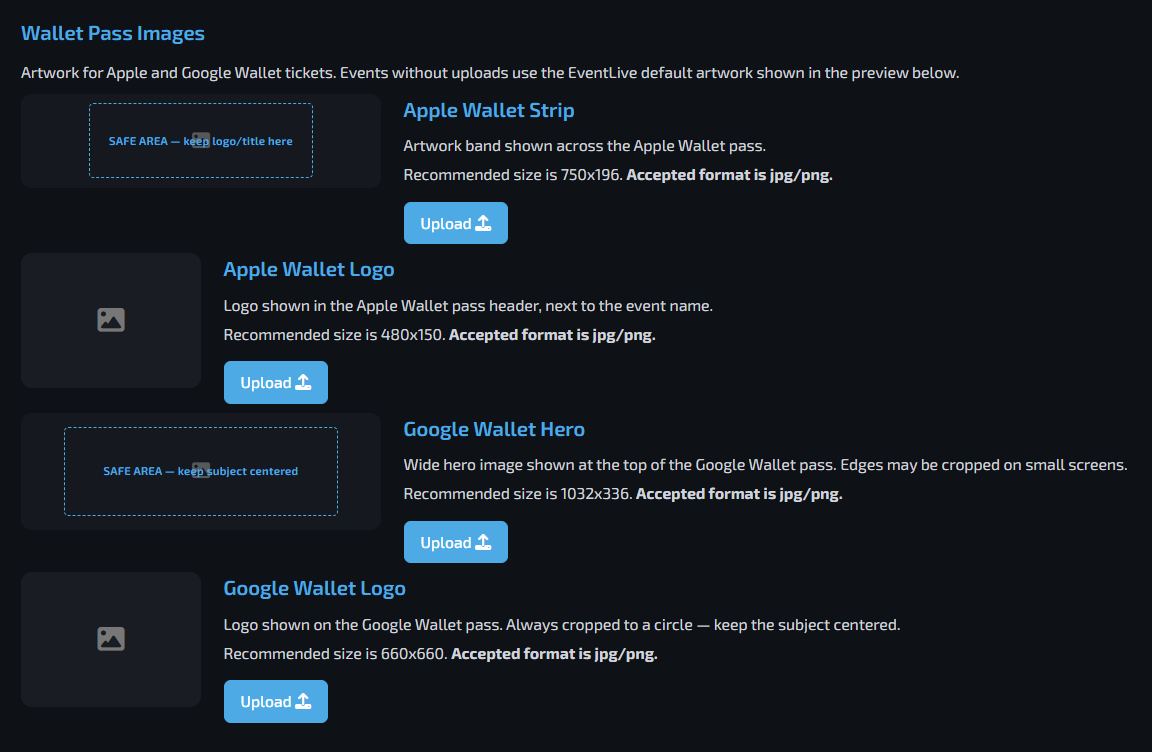
You can upload separate artwork for Apple Wallet and Google Wallet. Use the recommended dimensions below for the best results.
🍎 Apple Wallet Strip
The Apple Wallet Strip is displayed across the Apple Wallet pass.
Recommended size: 750 × 196 px
Accepted formats: JPG, PNG
If your image does not match the recommended dimensions, a window will appear allowing you to crop and position the image.
🍎 Apple Wallet Logo
The Apple Wallet Logo appears in the pass header next to the event name.
Recommended size: 480 × 150 px
Accepted formats: JPG, PNG
🟢 Google Wallet Hero
The Google Wallet Hero is a wide image displayed at the top of the Google Wallet pass. Edges may be cropped on smaller screens.
Recommended size: 1032 × 336 px
Accepted formats: JPG, PNG
If your image does not match the recommended dimensions, a window will appear allowing you to crop and position the image.
🟢 Google Wallet Logo
The Google Wallet Logo is displayed on the Google Wallet pass and is always cropped into a circle.
Recommended size: 660 × 660 px
Accepted formats: JPG, PNG
Keep the main subject or logo centered to ensure it displays correctly after cropping.
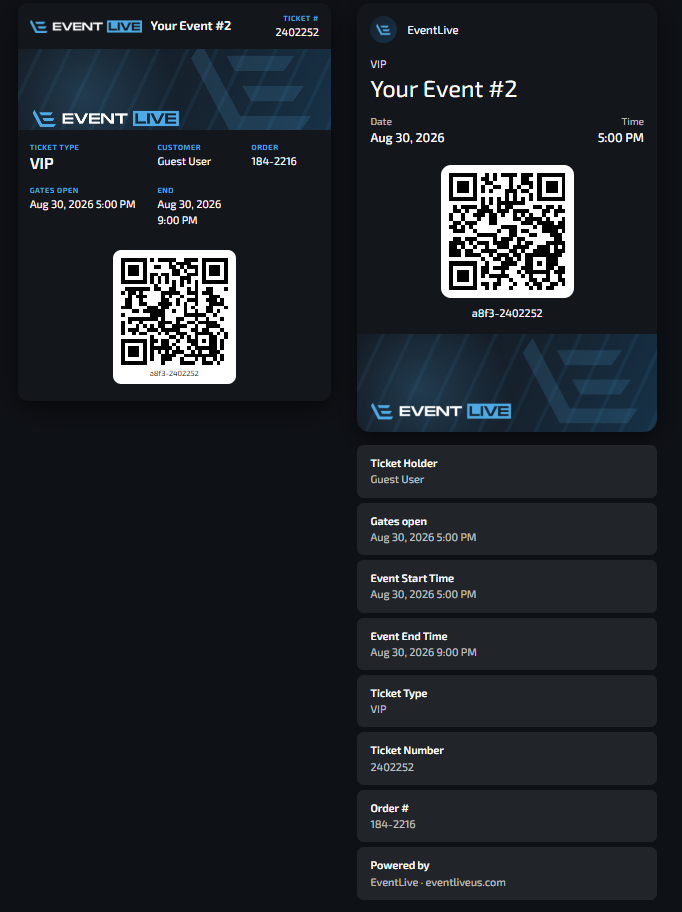
As you configure your artwork, use the Pass Preview section to see how your digital wallet pass will look.
The preview updates based on your wallet design settings, allowing you to check the appearance before your attendees use their passes.
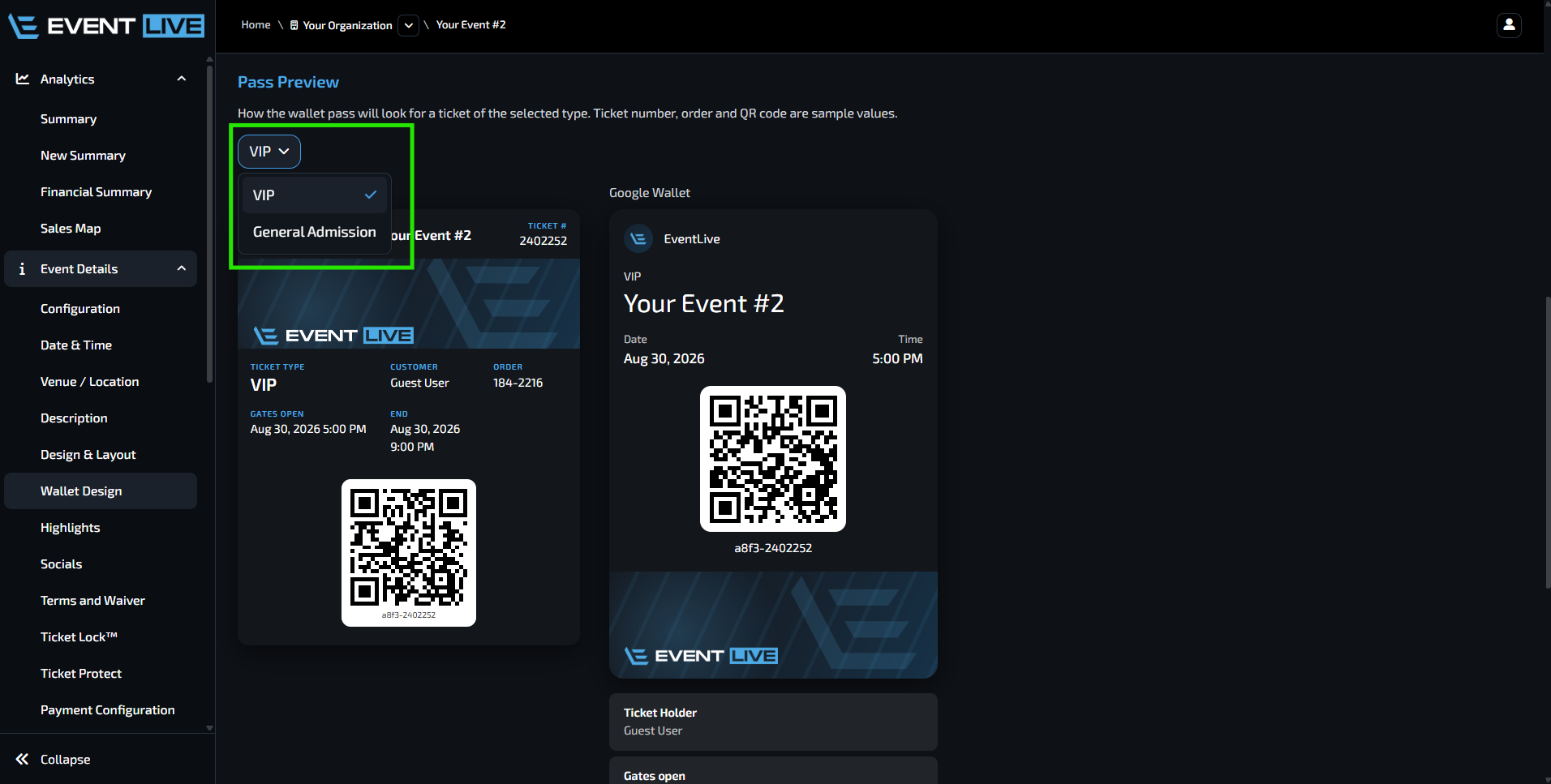
Under Pass Preview, use the Ticket Type Dropdown to select a specific ticket type.
This allows you to preview how the wallet pass will appear for each ticket type, including the Ticket Name displayed on the pass.
FAQs
Can I use the same image for Apple Wallet and Google Wallet?
Yes. However, each wallet artwork type has different recommended dimensions, so you may need to adjust or crop the image for the best appearance.
Why does my image look cropped?
Some wallet artwork is automatically cropped, especially the Google Wallet Hero and Google Wallet Logo. Use the recommended dimensions and keep important content centered.
What happens if my image isn't the recommended size?
For artwork that supports cropping, a window will appear allowing you to crop and reposition your image before applying it.
Why should I check each ticket type?
Different ticket types may have different ticket names. Previewing each type helps ensure the information displays correctly on the wallet pass.