

What is Event Clock?
Event Clock is a view-only tab under Access Control that shows, on one screen, what tickets are valid at the gates right now and what changes next. For the day you pick, it lays out when doors open, when the event starts and ends, and the exact time window each ticket type can be scanned in. The times match what your scanners enforce, so staff can see a window closing before the first ticket is turned away.
If the event has finished, the page stops refreshing and shows the timeline as it stood at the close of the event.
Why Event Clock Matters?
🚪 Brief staff before the first refusal — see which ticket types open or close next and tell scanners ahead of time.
⏰ Know where you are in the day — doors, start, close and the current time together at a glance.
🎟️ Warn guests before they miss out — e.g. "VIP Early Entry closes 17:00 · in 20m" lets box office tell late buyers what they're about to lose.
🔍 Answer "why was my ticket refused?" — see the exact window the scanner used, early doors included.
✅ Always matches the scanner — Event Clock uses the same rules as the scanners, so the two never disagree.
Where to Find It?
Learn How to Read the Event Clock
The timeline has one row per ticket type that a control pool of this event gates. Ticket types linked to no pool are never accepted by a scanner, so they are counted in the footer instead of drawn here.

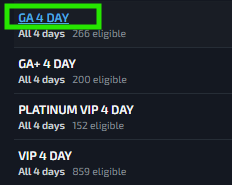
Ticket Type. The ticket type name, for example GA 4-Day. It does not just show the name as a label but it can also be used to edit the ticket and fix an incorrectly setup Access Schedule.
Days - Which days it's valid, for example All 3 days or Day 1 only
Eligible - How many tickets of that type can get in, for example 200 eligible
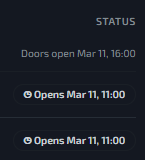
Status - What's true now or what changes next. The Status column uses these labels:
Valid Now. Scanners accept this ticket right now.
Closing Soon. Still valid, but the window closes within 90 minutes. Shown in a warning color.
Opens Later. Not valid yet; shows when scanning opens.
Closed. The window has ended. Shown greyed out.
Valid All Day. No time limit, so it can be scanned any time on the days it's valid.
The Timeline
Each schedule day gets its own labeled column, such as Day 1 · Thu, March 11. Doors, start and close sit along the top, and a dashed line marks the current time while the event is running.

Each bar is a window the scanner will accept. It already includes the gates-open lead time, so a bar can start earlier than the time set on the ticket type. Hover over a bar to see the exact window, for example Mar 11, 11:00 - Mar 12 22:00.

Bar colors: bright blue means scannable now; darker blue means not scannable now. The legend under the timeline explains this.

Summary footer under the timeline sums up the event in one line:
Doors: when gates first open, for example Nov 20, 13:00.
Closes: when the event closes, for example Nov 22, 22:00.
Days: how many days the event runs.
Next: the next two changes at the gates, for example 11 types open Nov 20, 13:00, then 2 types close Nov 20, 22:00.
If some ticket types aren't linked to any control pool, the footer also counts them, for example 3 ticket types are not gated. Use the footer to brief scanners before the first refusal rather than after it.
The Updated … ago note at the top right shows when the page last refreshed.

Access Schedule Incorrectly Configured?
If the access schedule falls outside the event's days or doesn't match when guests should get in, scanners will refuse those tickets at the gate. Event Clock shows this before it happens, so you can fix it ahead of doors.
Signs the access schedule is wrong:
Bar on the wrong day — e.g. GA Friday shows a bar on Day 2.
Missing bar — a ticket type has no bar on a day it should be valid.
Wrong open or close time — the bar opens after doors or closes before the event ends when it shouldn't.
Bar outside the event — the window starts or ends outside the Day columns.
How to fix it:
A pop-up window opens straight to the Edit Ticket form.
Scroll down to Product Access - Selected Schedules and set the correct start and end date and time.
Go back to Event Clock and click Refresh (or wait up to 60 seconds). Hover over the bar to confirm the new window.
Note: bars already include the gates-open lead time. If a bar starts earlier than the time you set, that's doors, not an error. To change it, update "gates open hours before start" in Event Details.
FAQs
Why isn't one of my ticket types on the timeline?
It isn't linked to a control pool for this event, so scanners won't accept it. The footer counts these ticket types.
Why does a bar start earlier than the time I set on the ticket type?
The bar includes the gates-open lead time, exactly as the scanner does. Windows already set to start before the event start are not moved again.
A guest was refused with "Access starts at …". How do I check why?
Hover that ticket type's bar. It shows the exact times the scanner used, so you'll see whether the window was closed or not open yet at the time of the scan.
Why does a ticket type only have a bar on some days?
It's only valid on those days. The row says which, for example Day 1 for GA Friday.
Why don't I see the dashed current-time line?
It only shows while the event is running. Before doors open and after the event ends, there's no line.
How can I tell if the screen has stopped updating?
Watch the Updated … ago note at the top right. If it keeps climbing past 60 seconds, the page isn't getting fresh data.
Does Event Clock show how many guests have checked in?
No. Each row shows how many tickets are eligible, not how many have arrived. Use Arrival by ticket type in Quick Look for check-in counts.
The times don't match my watch. Why?
Event Clock uses the event's time zone. If you're in a different time zone from the venue, the times will look shifted.