

The Event Questionnaire lets you ask your buyers questions when they buy tickets. Questions can be asked during checkout or after the purchase is complete. You can see every answer on the order or download the whole Questionnaire Report.
Why This Matters
📋 Get the info you need up front: Collect details before event day instead of chasing buyers by email.
🎟️ Answers for each person: Ask once per order, once per ticket type, or once per ticket, so every attendee can give their own answer.
🖨️ Answers where your staff need them: Print answers on tickets or receipts so check-in and on-site teams have them handy.
📊 Easy to share: Export all answers to a spreadsheet for caterers, merch teams, or planners.
What It's Used For
Planning: Arrival dates, session choices, or how many people need parking.
Safety and care: Emergency contacts, allergies, or accessibility needs.
Marketing: Asking how buyers heard about your event or whether it's their first time.
These are just a few ideas. The questionnaire works for almost anything you'd like to know about your attendees, so feel free to get creative. For example, you could collect song requests for a DJ, ask for a meal choice at a gala, let buyers pick a workshop time slot, or learn what they'd like to see at your next event. The better you know your audience, the better experience you can create for them.
How to Set It Up
Give your questionnaire a name, like "Attendee Questions," and click Save name. Buyers will see this name at checkout, on their order, and on their receipt.
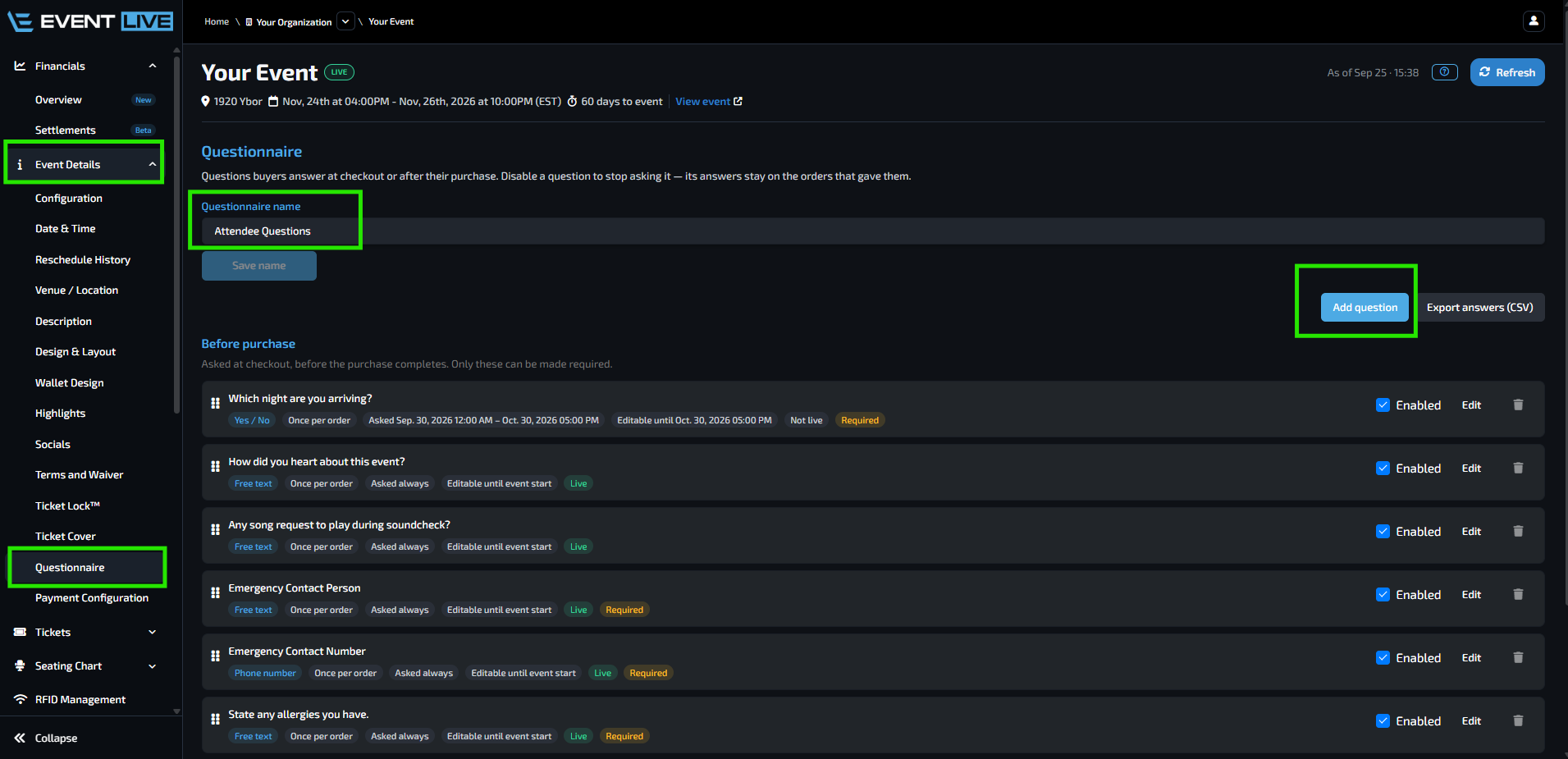
Question can be up to 500 characters.
Yes / No
Drop-down
Minimum of 2 Options; Maximum of 50 options
Every option needs a label, and no two can be the same (upper and lower case count as the same, so "Small" and "small" aren't allowed).
For a Drop-down, click Add option for each choice. Tick Allow more than one choice if buyers can pick several.
Free text allows customers to answer up to 65,535 characters.
Number must be a number, up to 14 digits and 4 decimal places.
Date
Phone number
Must be a valid phone number with the country code.
Buyers can switch the country flag for non-US numbers.
Address. Customers can search with Google to fill it in, then fix any part by hand.
Under Products, keep All products ticked to ask everyone, or untick it and choose specific ticket types.
Under Asked, choose how often the question is asked:
Once per order: one answer for the whole order.
Once per product: one answer per ticket type bought.
Once per ticket: one answer for every ticket.
Under When, choose:
Before purchase: asked in a pop-up during checkout. Tick Required if buyers must answer before paying.
After purchase: offered once the order is confirmed. These are always optional, and buyers can answer later from their order.
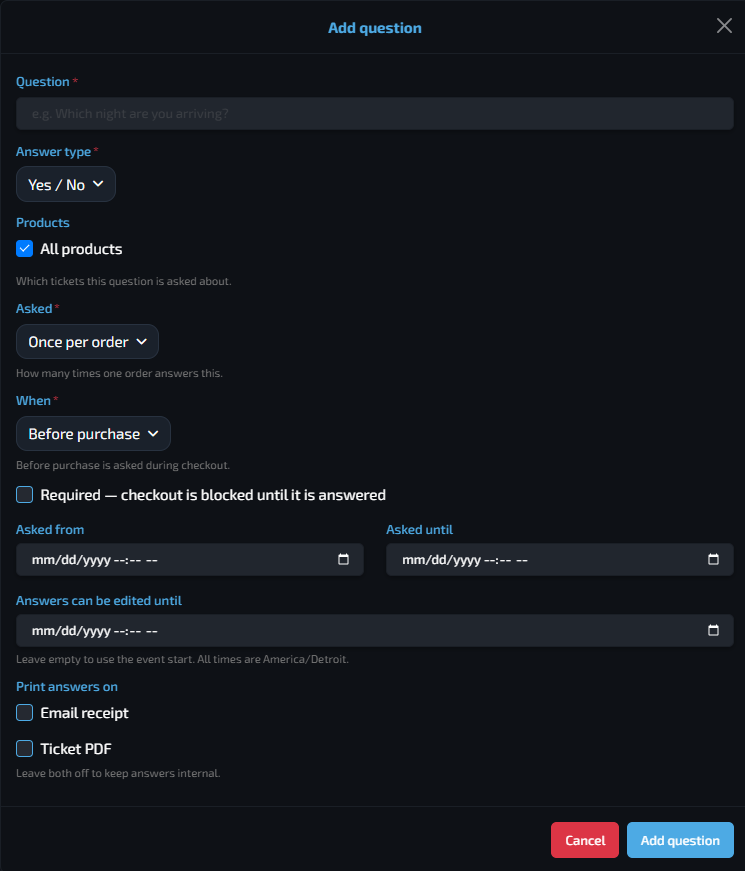
Helpful Buttons
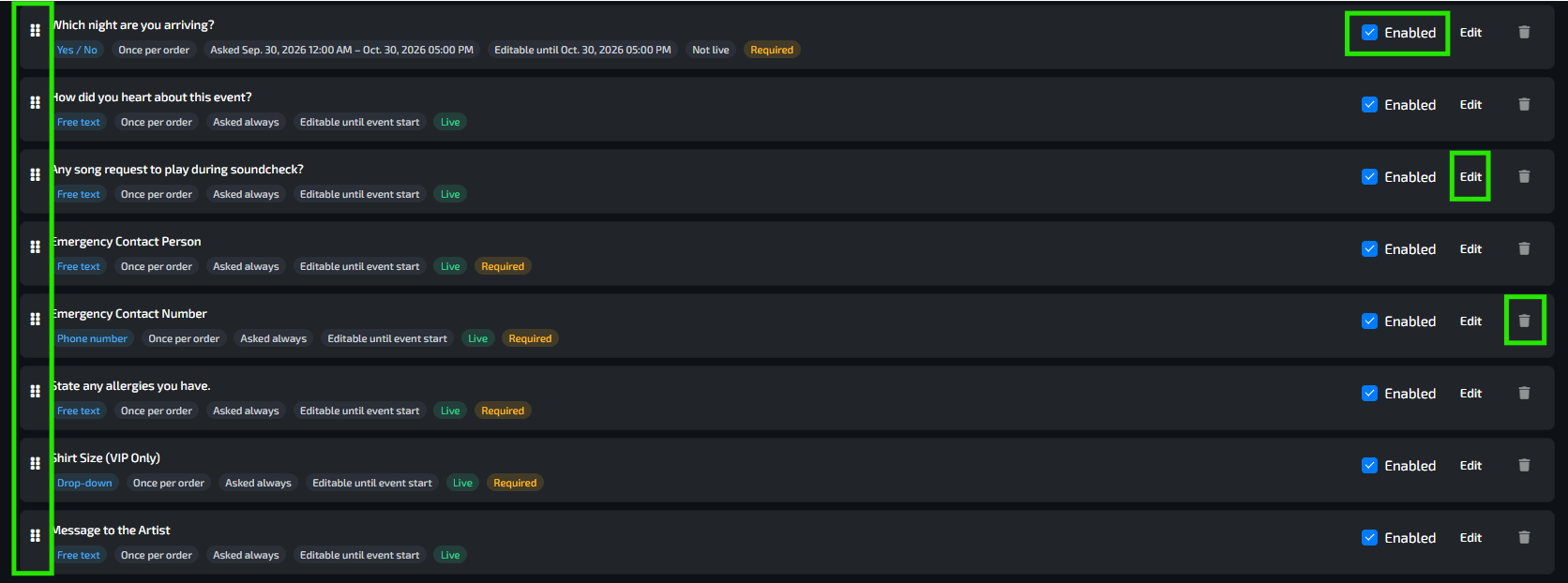
Drag the ⋮⋮ handle to change the order buyers see questions in.
Untick Enabled to stop asking a question. Once disabled, the questions will disappear from the questionnaire. Answers already given are kept.
Use the Edit Button to update a question. Once a buyer has answered a question, you cannot change Asked or When. You can still edit the wording and other settings.
Use the Trash Icon to deleted a question. Once a buyer has answered a question, you can no longer delete it.
Checking Questionnaire Answers
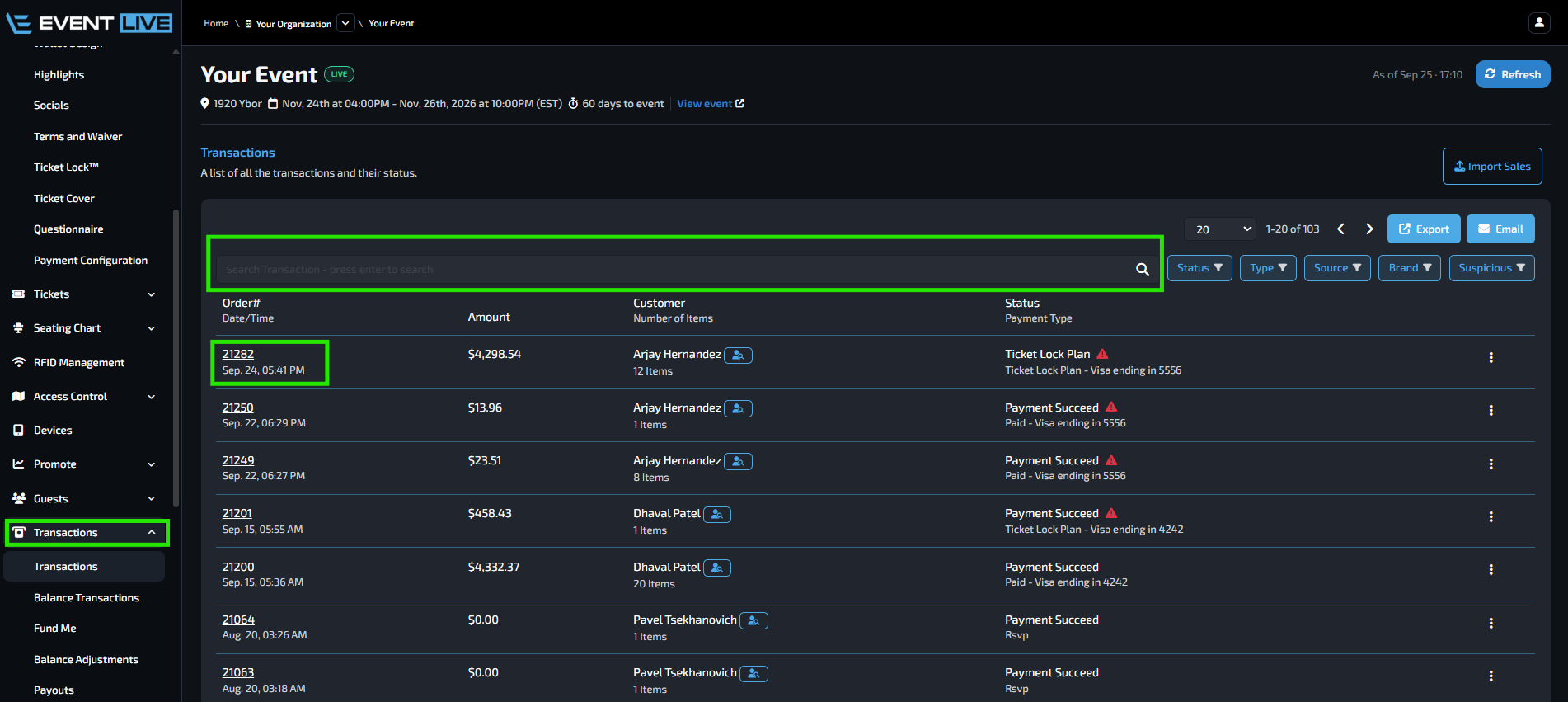
To see answers, open any order and go to the Questionnaire tab on a customer order details, or click Export answers (CSV) on the Questionnaire page.
Export CSV will give you all consolidated answers for all customers
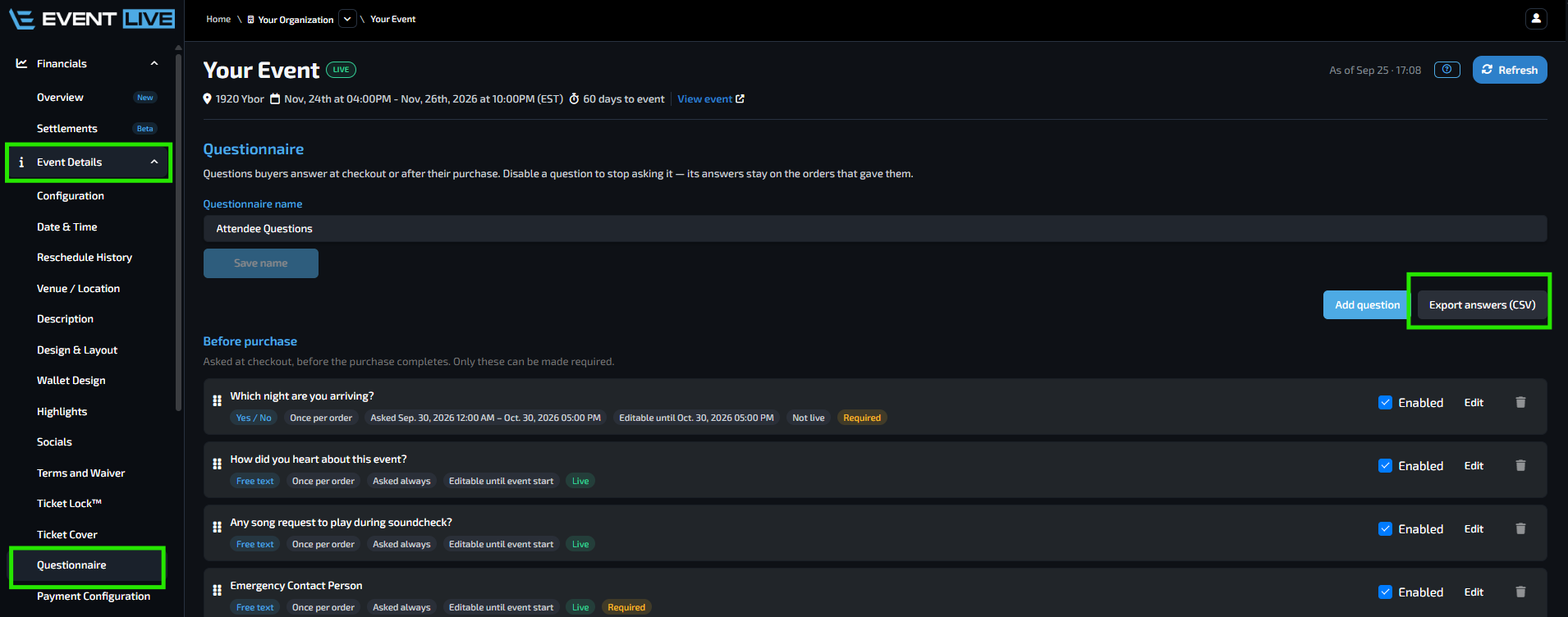
Check Questionnaire Tab can be used when checking a specific customer's answers only
E.g. Name, Order Number, or Email Address

FAQs
Can I require buyers to answer a questionnaire before purchasing?
Yes. Set When to Before purchase and enable Required. Buyers must provide an answer before they can complete checkout.
Can buyers answer questions after they purchase their tickets?
Yes. Set When to After purchase. These questions are always optional, and buyers can provide or update their answers from their order.
Can I ask a question only for specific ticket types?
Yes. Under Products, untick All products and select the specific ticket types you want the question to apply to.
What is the difference between Once per order, Once per product, and Once per ticket?
Once per order: The buyer provides one answer for the entire order.
Once per product: The buyer provides one answer for each ticket type purchased.
Once per ticket: The buyer provides an answer for every individual ticket.
Can buyers edit their questionnaire answers?
Yes. You can set an Answers can be edited until date. If no date is entered, buyers can edit their answers until the event starts.
Can I stop asking a questionnaire question without deleting it?
Yes. Untick Enabled to disable the question. The question will no longer be shown to buyers, but answers that were already submitted will be retained.
Can I delete a questionnaire question after someone has answered it?
No. Once a buyer has answered a question, it can no longer be deleted.
Can I change a questionnaire question after someone has answered it?
Yes, you can still edit the question wording and other settings. However, Asked and When cannot be changed once a buyer has answered the question.
Where can I see a customer's questionnaire answers?
Open the customer's order from the Transactions tab and select the Questionnaire tab in the Order Details.
Can questionnaire answers appear on tickets or receipts?
Yes. Under Print answers on, you can choose Email receipt, Ticket PDF, both, or neither. If both are left unchecked, the answers remain private to your team.
What happens to questionnaire answers if I disable a question?
Previously submitted answers are kept. Disabling the question only prevents it from being shown to buyers going forward.