

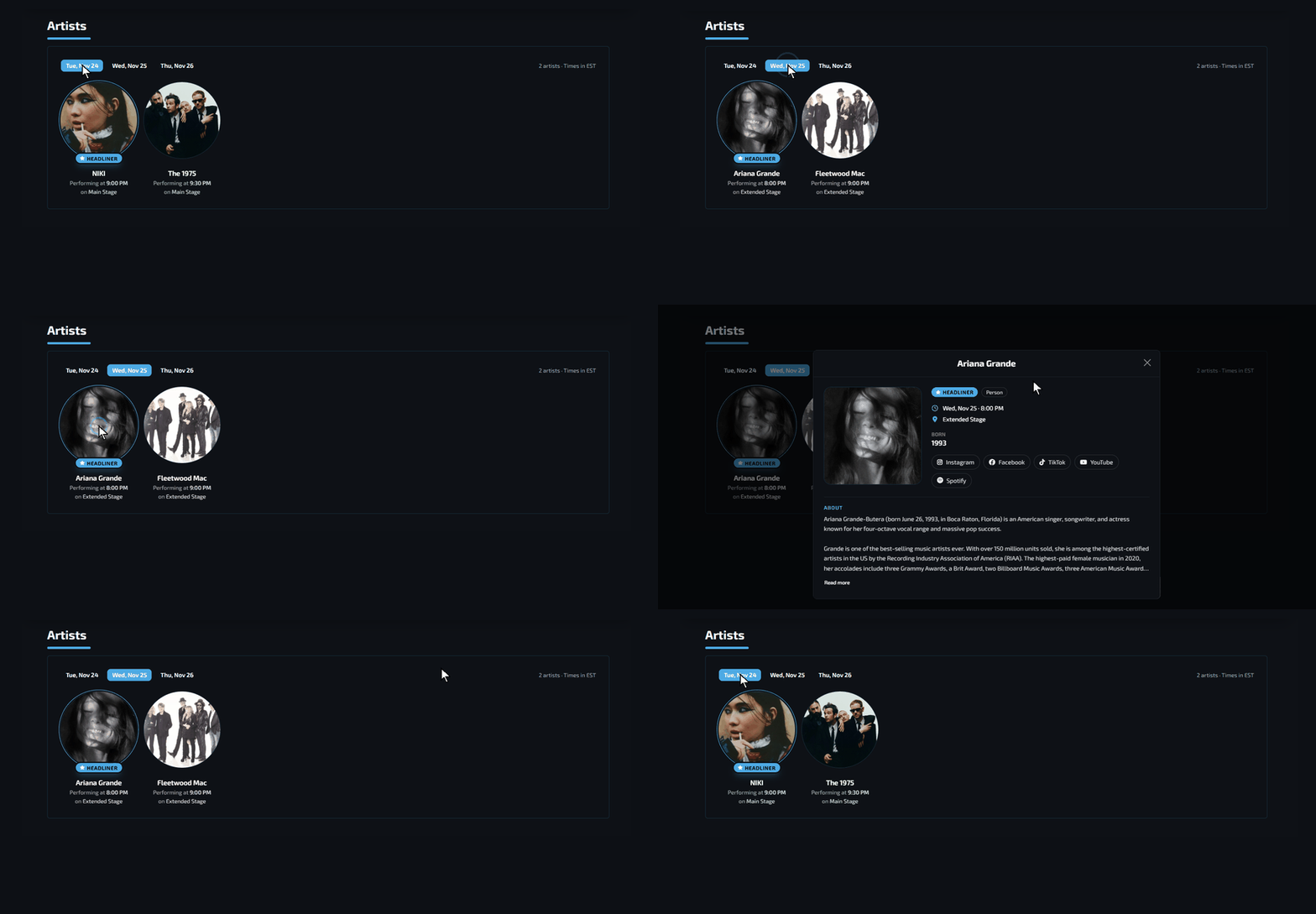
Artist Lineup lets organizers show who's performing right on the event's ticketing page, so customers can see the lineup before they buy. You can highlight your headliners, split the lineup into a tab for each day of a multi-day event, and give every artist a profile with links to their music and social media.
With Artist Lineup, you can set up:
Artists — every act performing at your event
Headliners — your top acts, featured more prominently
Day tabs — a separate lineup for each day of a multi-day event
Artist profiles — a photo, short bio, and links to Spotify and social media accounts
Why Artist Lineup Matters
🎤 Sell the experience — fans buy tickets to see the artists they love
⭐ Spotlight your headliners — your biggest names get top billing
📅 Clear multi-day planning — customers see who plays each day and pick the right ticket
🎧 Help fans discover new acts — one tap to listen on Spotify
📲 Grow your reach — social links connect fans with artists and build buzz
✅ Fewer "who's playing?" questions — the answer is right on the ticketing page
How to Set Up Your Artist Lineup
Artist permission: as the event organizer, you are responsible for the artists you list on this event. Before you add an artist, get permission from the artist or their management to feature their name and profile on your event page. EventLive does not obtain or verify this permission and is not responsible for your lineup.
Adding Artists
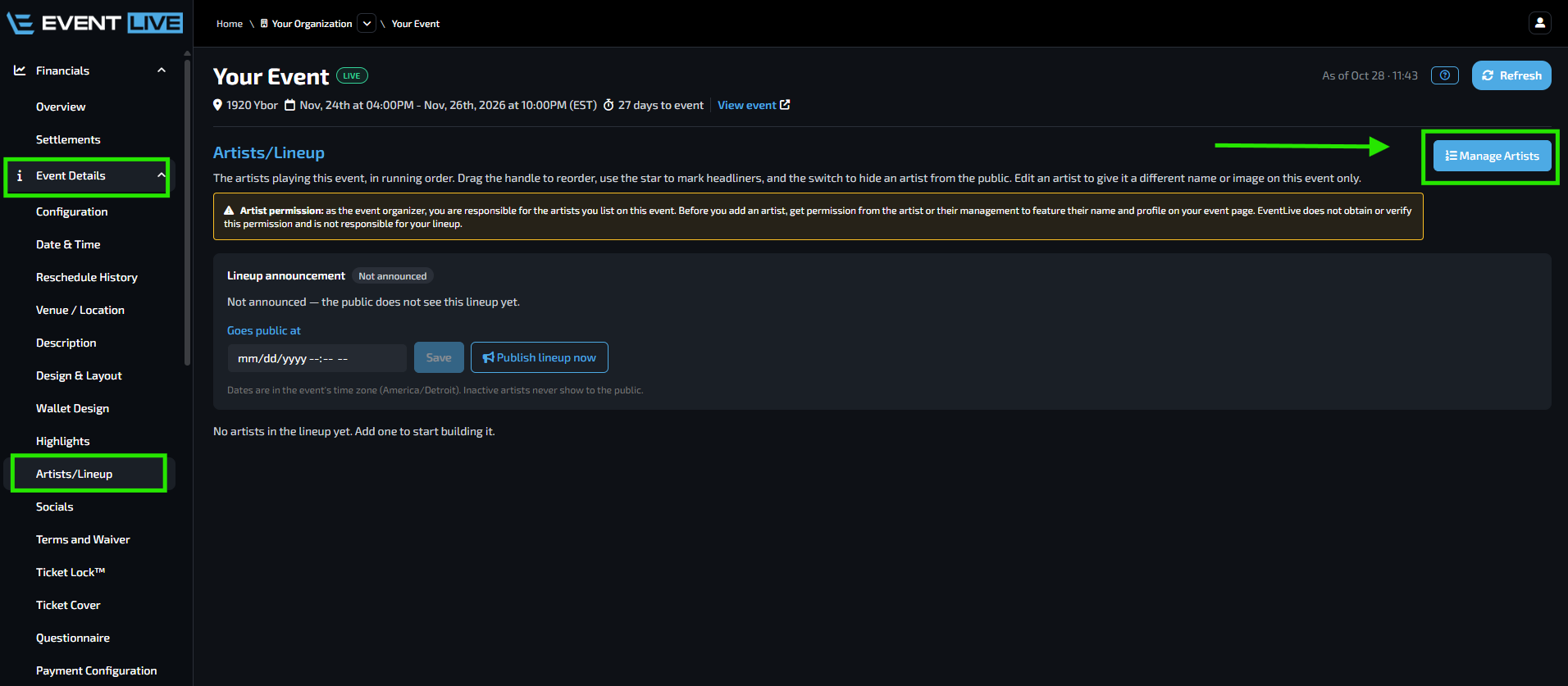
From your Event Dashboard, go to Event Details > Artists/Lineup.
This opens the artist search.
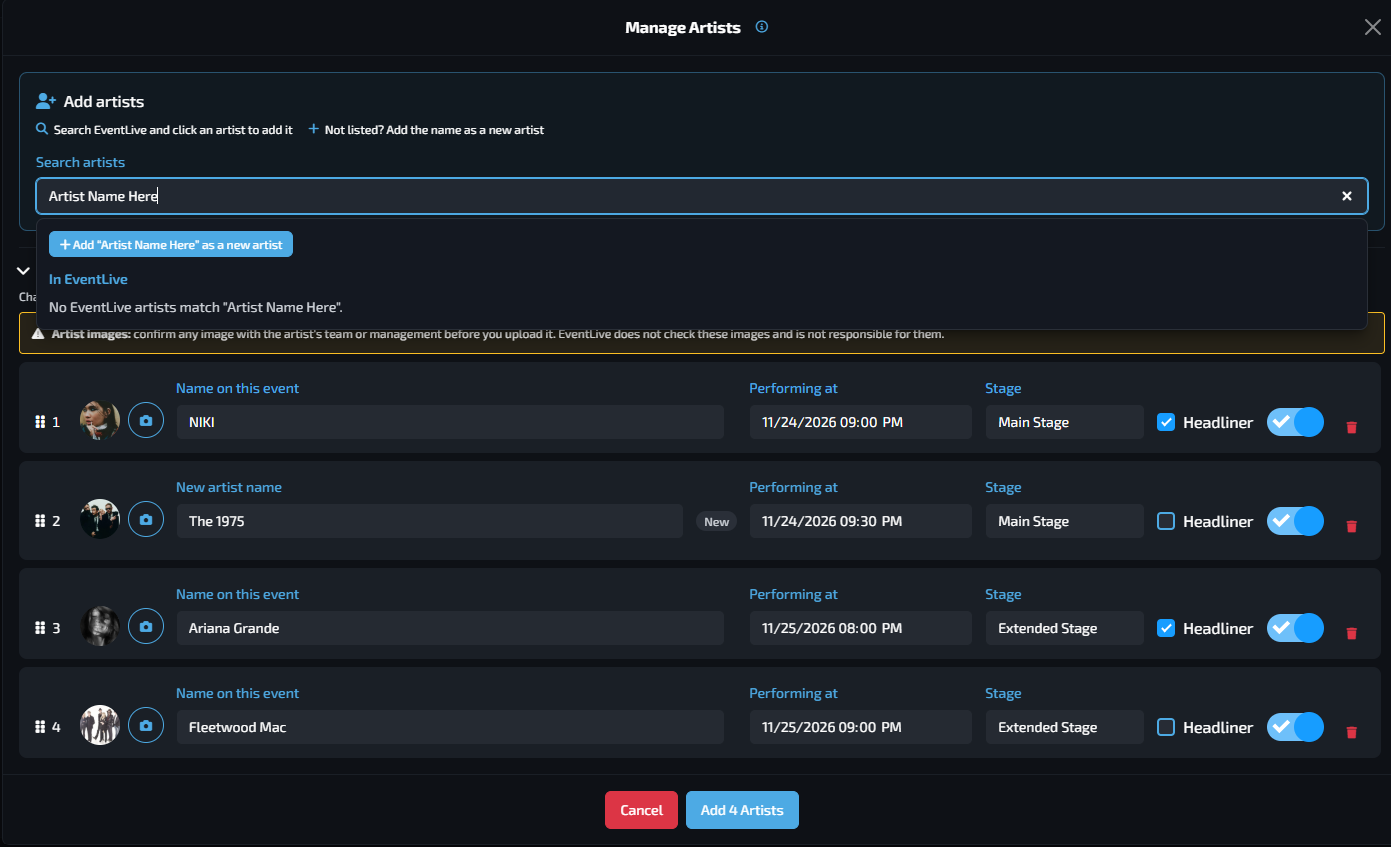
Type the artist's name to see matching artists already in the EVENT Live system.
No artist found? Type the name in the search bar and click Add as a new artist.
In the Lineup section, manage the artist you added.
Photo — this becomes the artist's global photo, used across all events
Performance Schedule — when the artist is performing
Stage — the stage they're performing on (e.g. Main Stage, Extended Stage)
Headliner — tick the box if they're a headliner
Show/Hide — artist not finalized yet? Toggle to hide them
Remove — click the trash icon
Click Add Artist(s) to save the artists to your lineup
Updating an Artist's Profile
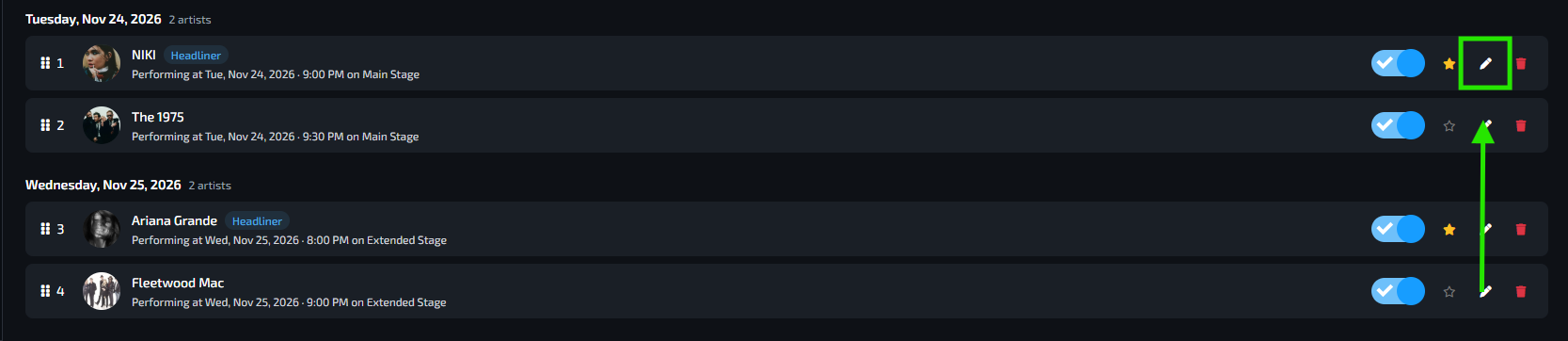
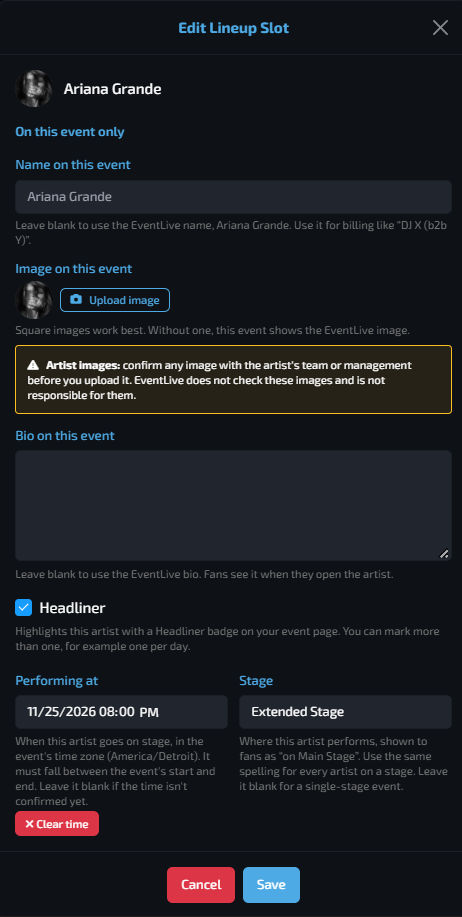
On the same page, click the pencil icon next to the artist.
Name on this event — used only for this event; other events keep the artist's global name
Image on this event — used only for this event; other events keep the global photo
Bio on this event — the artist's bio for this event
Headliner, Performance Schedule, Stage — if not set earlier
Artist links: Instagram, Facebook, Spotify, and other links must be reviewed and approved by EVENT Live. The EVENT Live team sets these up on the backend.
Configuring Lineup Announcement

On the same page, choose when the lineup is announced.
Save — the lineup goes public on the date and time you set
Publish Now — the lineup goes public right away
Hide — clears the announcement date; the public won't see the lineup until you set a new one
Click Preview to see how the lineup looks on the public ticketing page.
Check artist profiles — Click an artist to make sure their profile looks right.
FAQs
Where does the lineup show up for customers?
On your event's ticketing page's Artist Section so customers see it while they're choosing tickets.
Can I have more than one headliner?
Yes. Mark as many artists as headliners as you need.
My event is only one day. Will I see day tabs?
No. Day tabs only appear for multi-day events. Single-day events show one lineup.
What if I don't set an artist's performance schedule?
The artist will be automatically put in the To be Announced (TBA) Tab
Who adds Spotify and social media links?
Who adds Spotify and social media links?
The EVENT Live team. All artist links are reviewed and approved by EVENT Live and set up on the backend.
Can I update the lineup after tickets go on sale?
Yes. You can add, edit, or remove artists anytime, and changes show on the ticketing page once saved.
What happens when a customer clicks an artist?
The artist's profile opens with their photo, bio, and links to their Spotify and social media accounts.