
The Visibility Configuration feature allows you to control whether a ticket appears on your purchase page. This ensures that customers only see tickets that are relevant and available for purchase.
Available Visibility Options
You can customize ticket visibility using the following settings:
Hide When Sale Over
Hide When Sold Out
Hide Until On Sale
Why Ticket Visibility Matters
🎯 Improves Customer Experience
Only relevant and available tickets are shown, making the purchase process faster and less confusing.🔥 Creates Urgency and Demand
Hiding tickets until they go live builds anticipation and can boost engagement when sales open.🧼 Keeps Your Page Clean and Professional
A clutter-free ticket page is easier to navigate and looks more polished to customers.🚫 Prevents Purchase Issues
Automatically hiding sold-out or expired tickets reduces errors and customer frustration.⚙️ Gives You Better Control
Manage when and how tickets appear to align with your sales strategy and event timeline.
How to Configure Ticket Visibility
From your Event Dashboard, go to Tickets > Create/Edit Tickets
Select a Master Layer and click Edit (pencil icon)
Choose your preferred visibility settings:
Hide When Sale Over
Automatically hides the ticket once the sale period has ended.
Requirement: A Sale End Date/Time must be configured at:
Child Layer (for multi-tier setups)
Master Layer (for one-tier setups)
Hide When Sold Out
Hides the ticket when all available quantities have been purchased or when the Mark Sold Out is toggled on.
Hide Until On Sale
Keeps the ticket hidden until its scheduled sale start time.
Requirement: A Sale Start Date/Time must be configured:
Child Layer (for multi-tier setups)
Master Layer (for one-tier setups)
Note: You can select one, multiple, or all of these options depending on your desired setup.
Checking Ticket Visibility Status
To confirm whether your tickets are visible to customers:
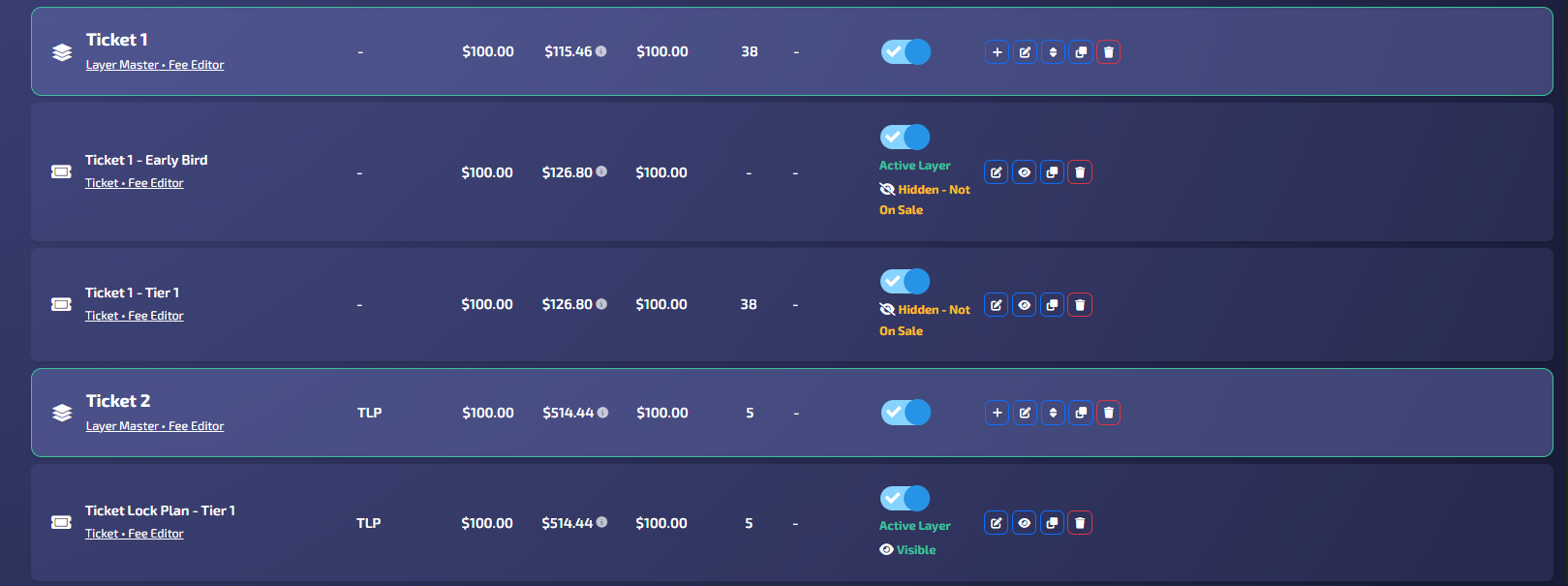
Navigate to the active child layers
Check the Status Column
Status Definitions:
Visible – The ticket is live, purchasable, and accessible on the ticketing page
Hidden – The ticket is currently not visible on the purchase page due to your configured settings
FAQs
Can I still access hidden tickets?
Yes, hidden tickets are still accessible from your dashboard for editing and management—they are just not visible to customers.
How do I know if a ticket is currently visible?
You can check the Status Column under the active child layers. It will display either Visible or Hidden.
Additionally, you can also view your ticketing page itself.
Why is my ticket not showing on the purchase page?
Your ticket may be hidden due to one or more enabled visibility settings, such as being sold out, not yet on sale, or past the sale end date.
Can I change visibility settings after publishing my event?
Yes, you can update visibility settings at any time by editing the ticket and saving your changes.
What happens if I don’t set a Sale Start or End Date?
If no Sale Start or End Date is configured, the Hide Until On Sale and Hide When Sale Over options will not function as intended, and the ticket may remain visible.
Do visibility settings affect existing orders?
No, visibility settings only control whether a ticket appears on the purchase page. They do not impact completed or existing orders.
Will hidden tickets still appear in reports and analytics?
Yes, hidden tickets are still included in your reporting and analytics. Visibility only affects the customer-facing purchase page.
Can I preview how my ticket page looks with visibility settings applied?
Yes, you can view your event page to confirm which tickets are currently visible or hidden based on your configuration.
If I update visibility settings, do changes apply immediately?
Yes, once you click Save, the changes are applied in real time and will immediately reflect on the purchase page.
Can different ticket tiers have different visibility settings?
Yes, each ticket (or layer) can have its own visibility configuration, allowing you to manage multiple tiers independently.